
Ikimina user guide
Everything your group needs to know, for members, the Accountant, the Secretary, the President and the EduSmart support team, with screens from the real app.
Choose your section
Members start with Getting started. Officers read the sections for their own job.
What Ikimina does for your group
Ikimina keeps your savings group's books clear and shared: contributions, attendance, loans, rotation, income and expenses, reports and approvals. Everyone signs in on their own phone with a phone number and a PIN, and sees what their role allows.
| Role | What they do |
|---|---|
| President | Oversees the group. Approves new members, loans, rule changes and payouts, and gives roles to other members. |
| Vice President | Approves loans, new members and larger expenses, and can replace the President or Accountant with the President. |
| Secretary | Records who attended each meeting, schedules meetings, posts announcements and submits new members for approval. |
| Accountant | The only role that records savings. Also records loan repayments, expenses and income, and pays out loans. |
| Auditor | Reads reports and the audit log to check the books. Cannot change anything. |
| Member | Sees their own savings, loans, attendance and contribution history, and can ask for a loan. |
- Only the Accountant records savings, so one person is accountable for the money.
- Nothing is ever erased: a mistake is corrected by a reversal that another officer approves.
- Each group sets its own rules: amounts, interest, fines and who approves what.
- Available in Kinyarwanda, English and French, on the web and on Android.
Sign in for the first time
You do not create your own account. An officer adds you to the group, another officer approves it, and you receive a temporary PIN in person.
- Get added. The President or Secretary adds your name and phone number. Another officer approves.
- Receive a PIN. You are given a temporary PIN in person.
- Sign in. Enter your phone number and the temporary PIN.
- Choose your PIN. You must choose your own PIN before you can continue.
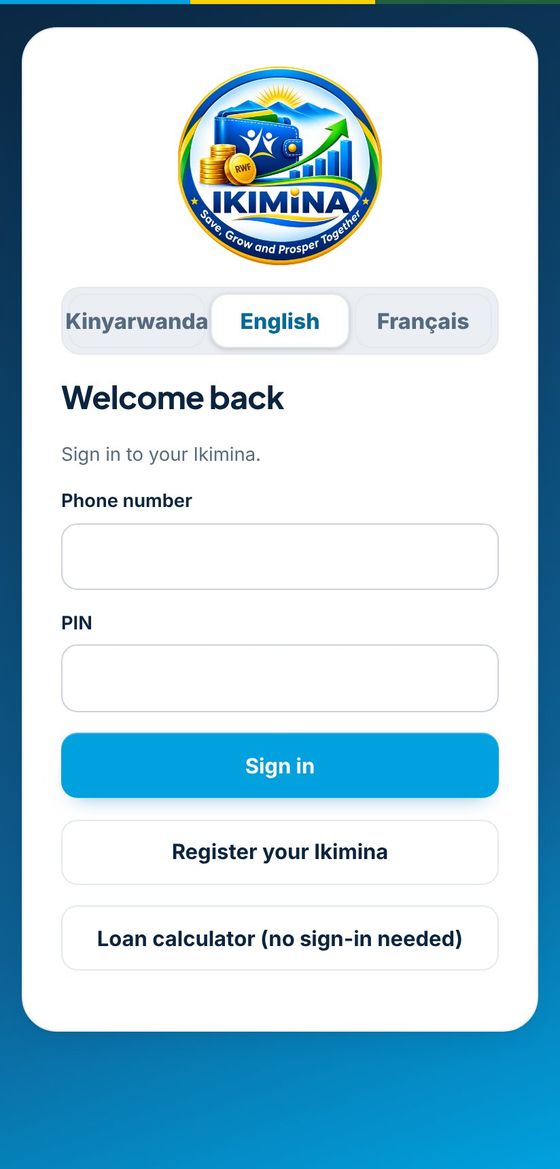
- Change the language at any time with the language chip at the top (Kinyarwanda, English or Français).
- After several wrong PINs the account locks for a while. If you forget your PIN, ask an officer to reset it; you will get a new temporary PIN.
- On Android, download the app from the link on edusmartconsult.rw, open the file, and allow installs from your browser when your phone asks.
Your home screen
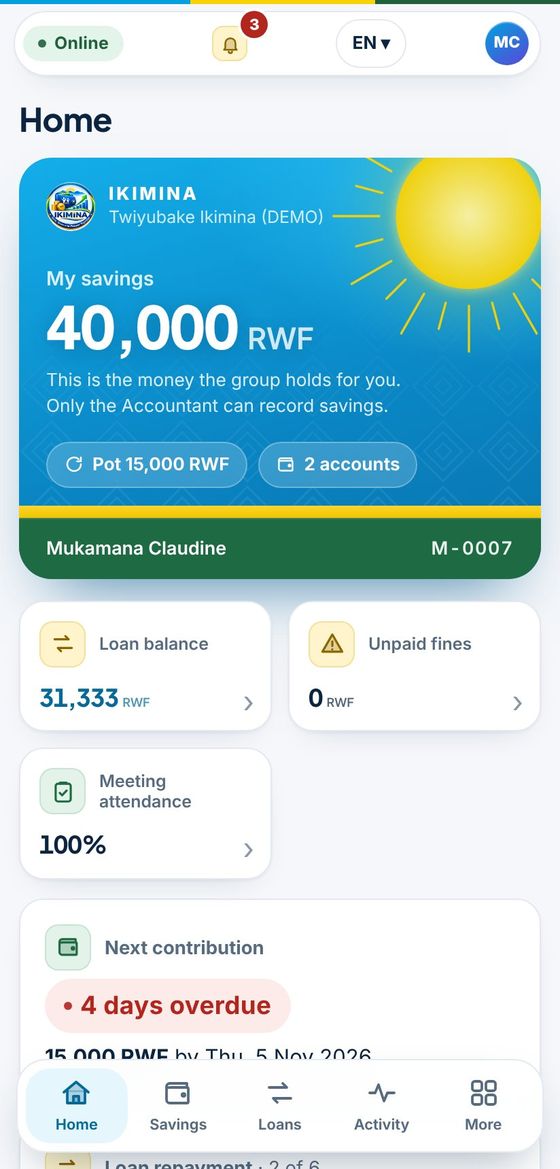
Home shows your savings, your loan balance, unpaid fines and your meeting attendance. Every figure is a button: tap it to open the page behind it.
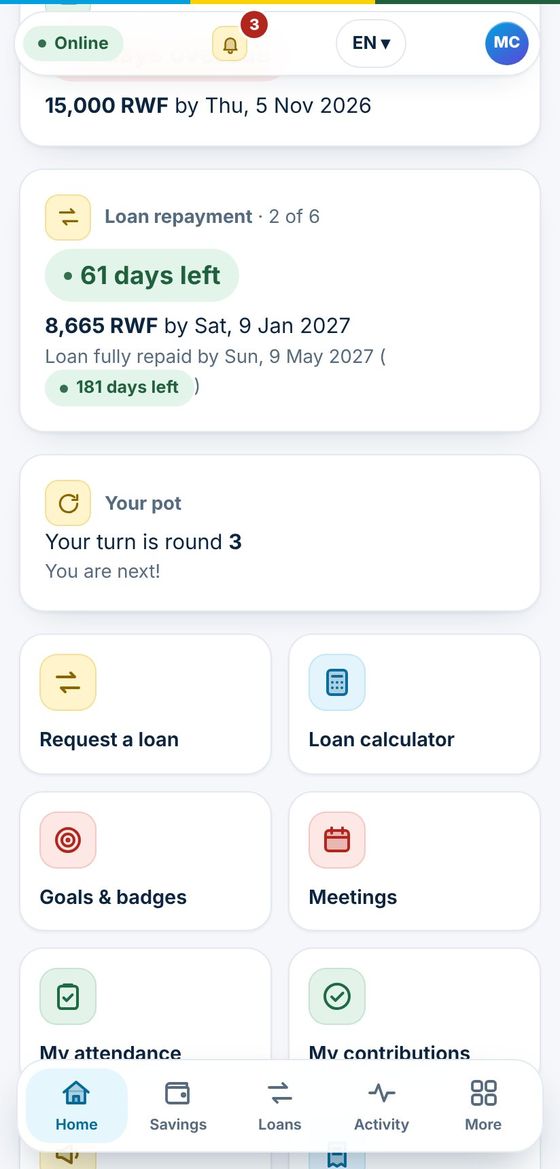
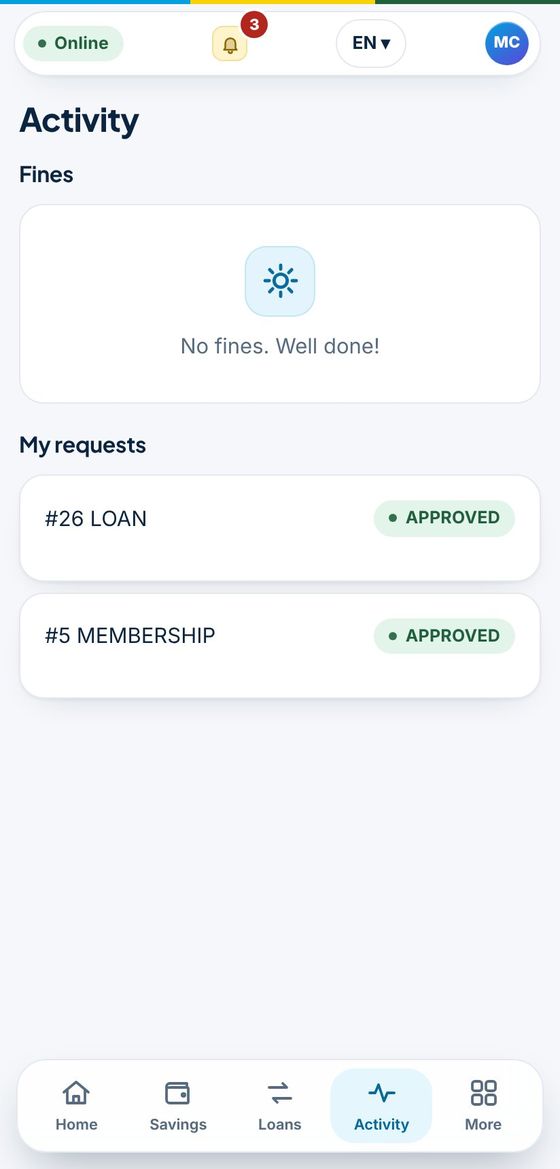
- Tap the savings card to open your savings and the history of each payment.
- Quick tiles lead to the loan calculator, goals, meetings, attendance and your contributions.
- The bottom menu hides itself when you are not touching the screen, to give you the whole screen. Touch the screen to bring it back. You can turn this off in Settings.
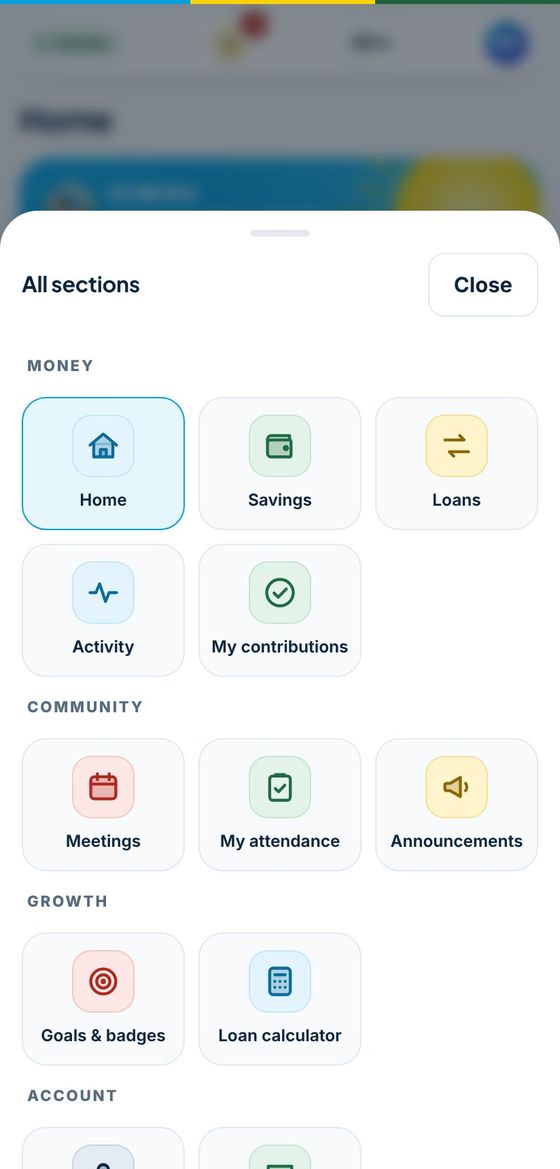
- Use More for every other section.
Savings and loans
See every payment recorded for you, and ask for a loan when you need one.
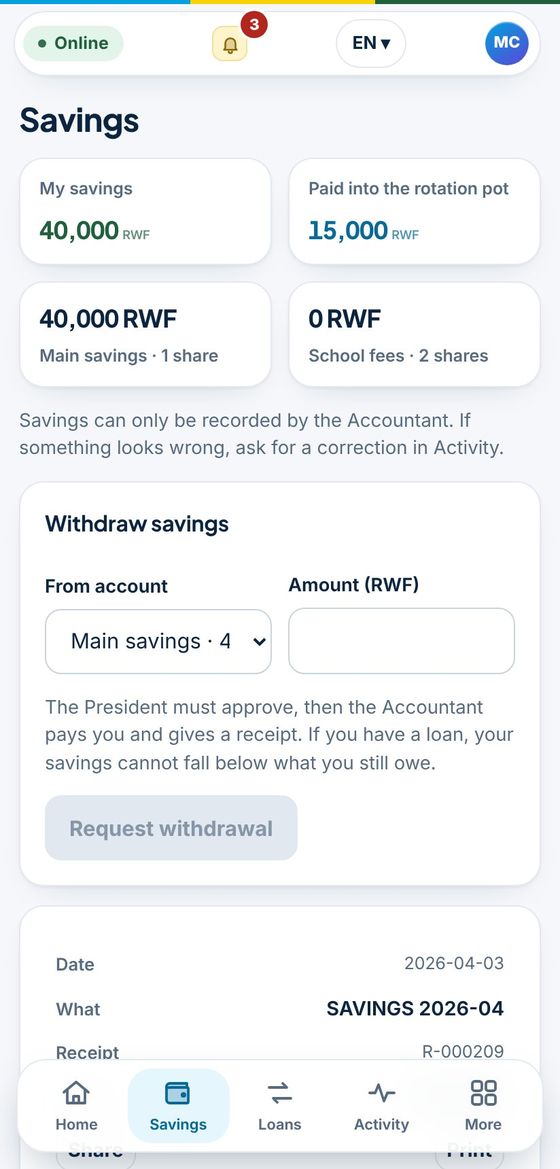
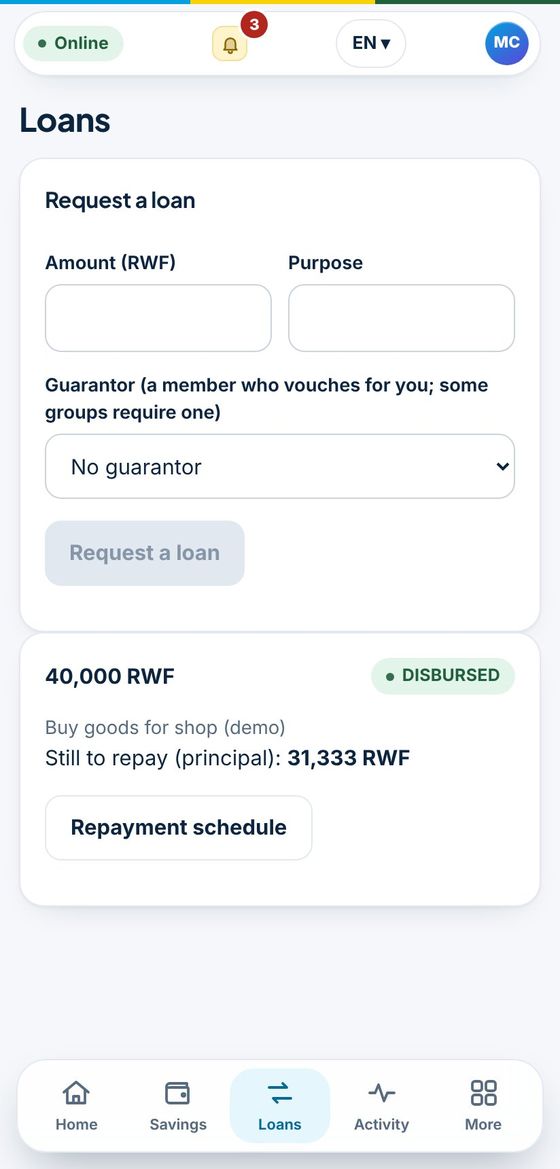
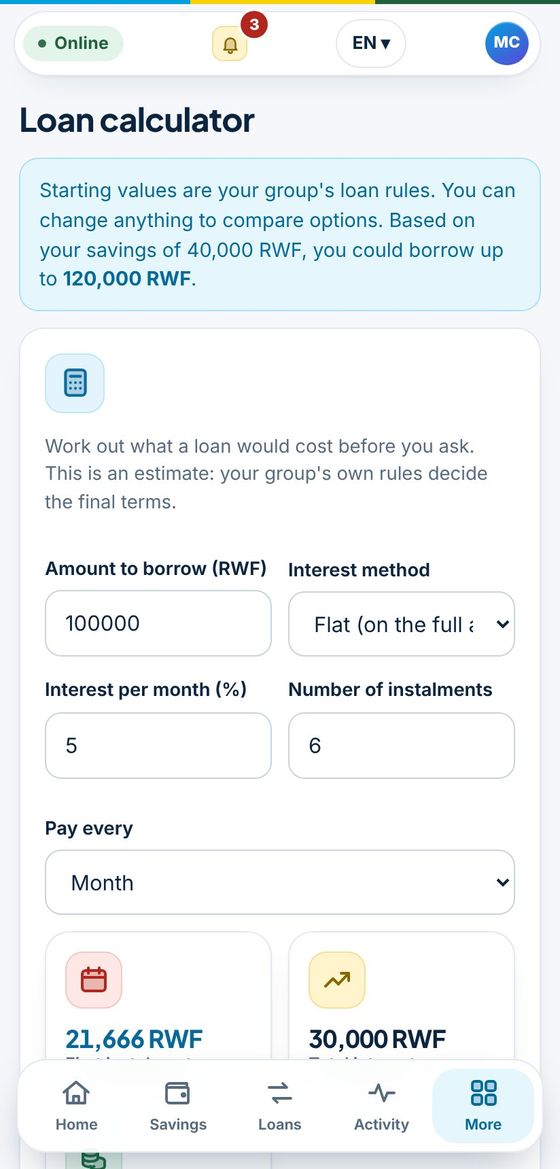
- Calculate. Use the loan calculator to see the instalments.
- Ask. Open Loans and send your request with a reason.
- Wait. Officers approve it. Some groups also need a guarantor who agrees first.
- Repay. The Accountant records each repayment and you see the balance fall.
Attendance and contribution history
See at a glance how often you come to meetings and whether you paid each month, exactly as the Secretary and Accountant recorded it.
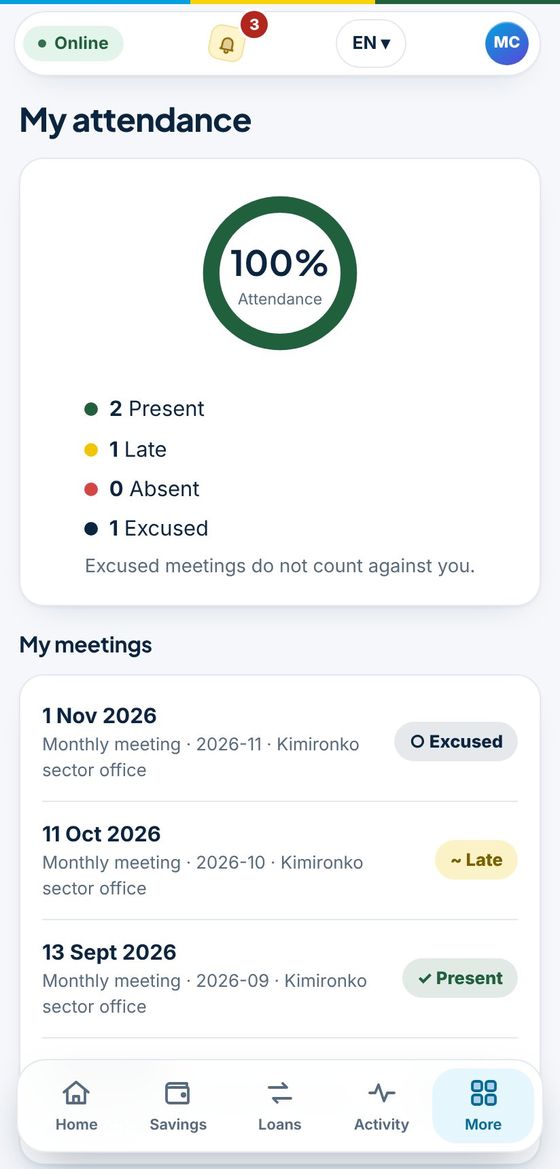
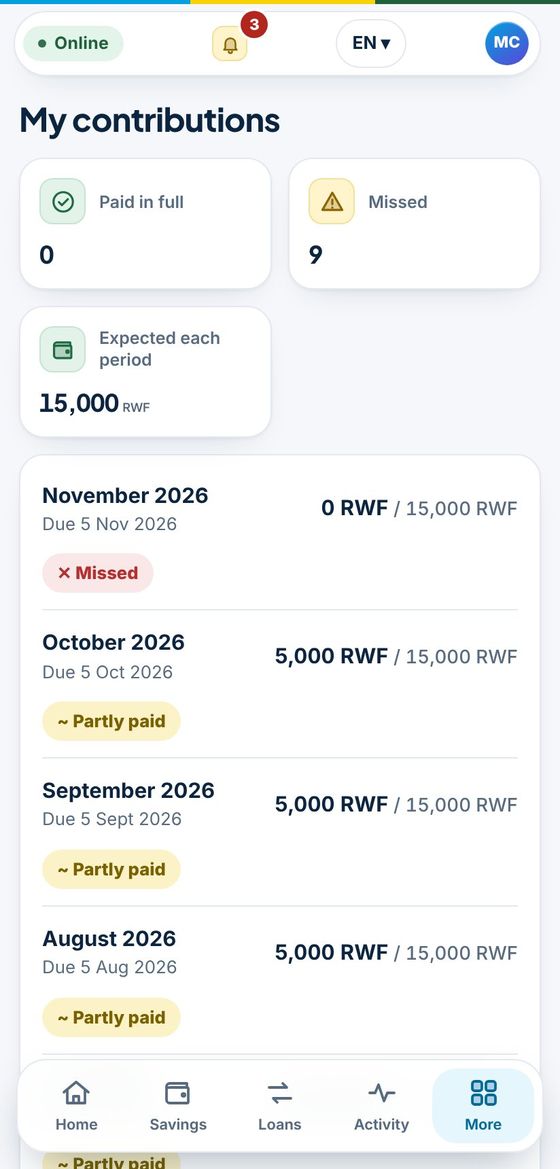
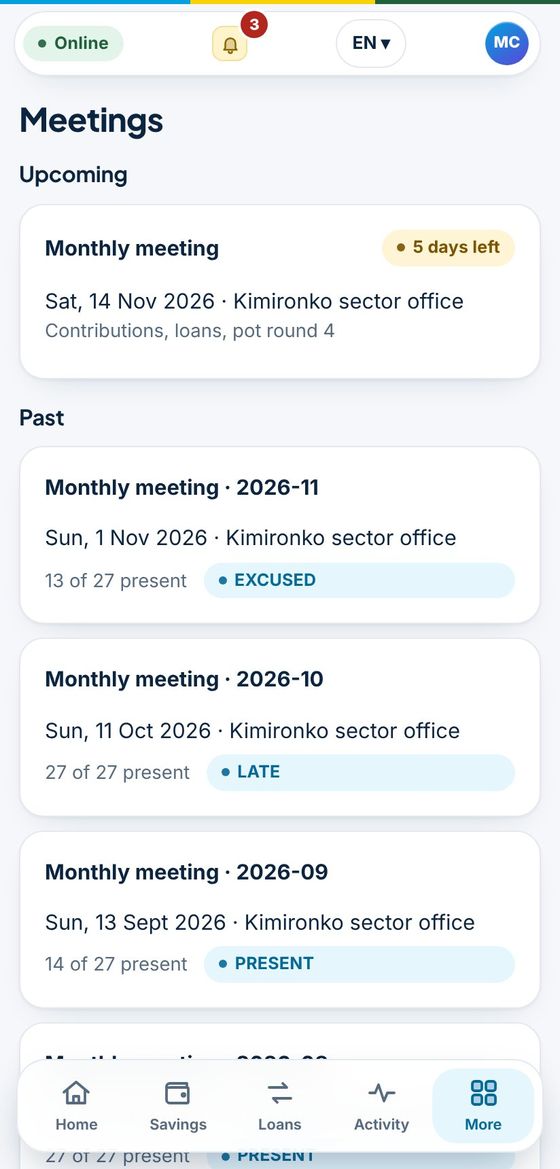
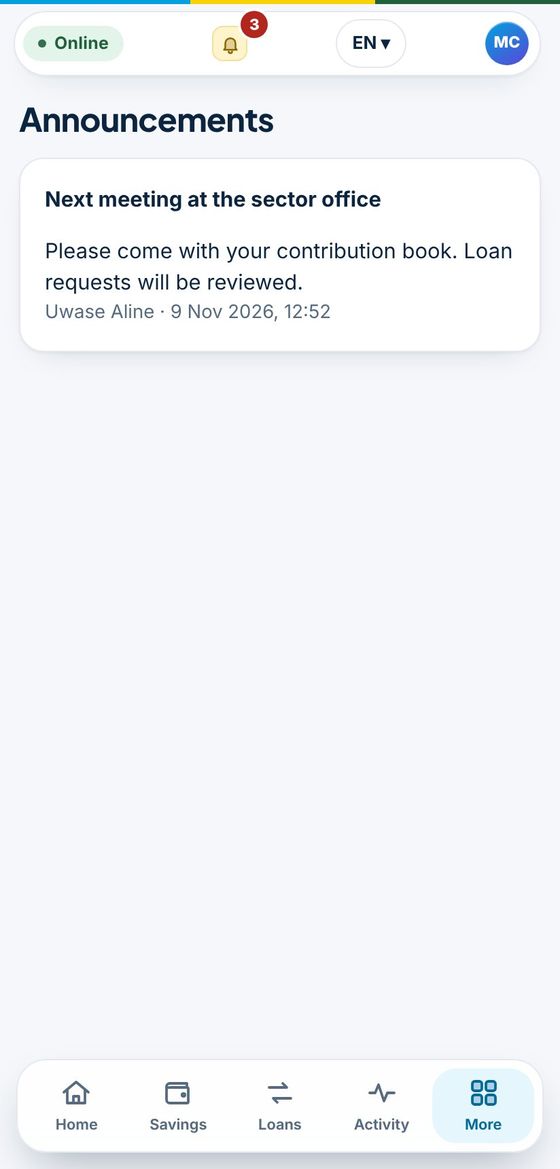
- Present and late count towards your attendance rate. Absent counts against it. Excused meetings do not count against you.
- A month shows as partly paid when you paid less than what you owe for your shares.
- If something looks wrong, tell the Secretary (attendance) or the Accountant (payments) so it can be corrected.
Goals, profile and help
Set a savings goal, see your badges, manage your account and ask for help.
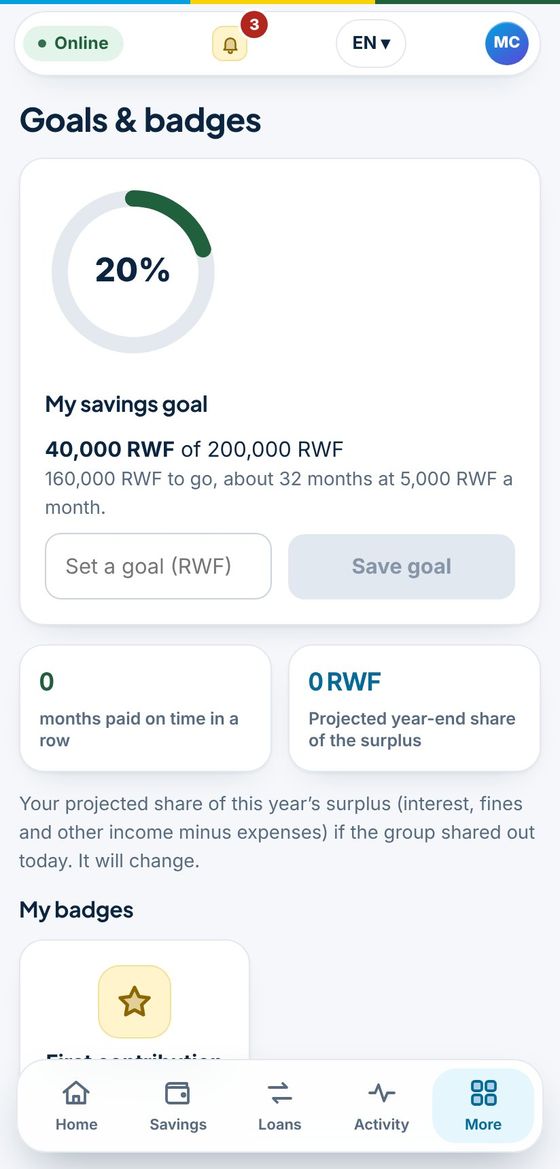
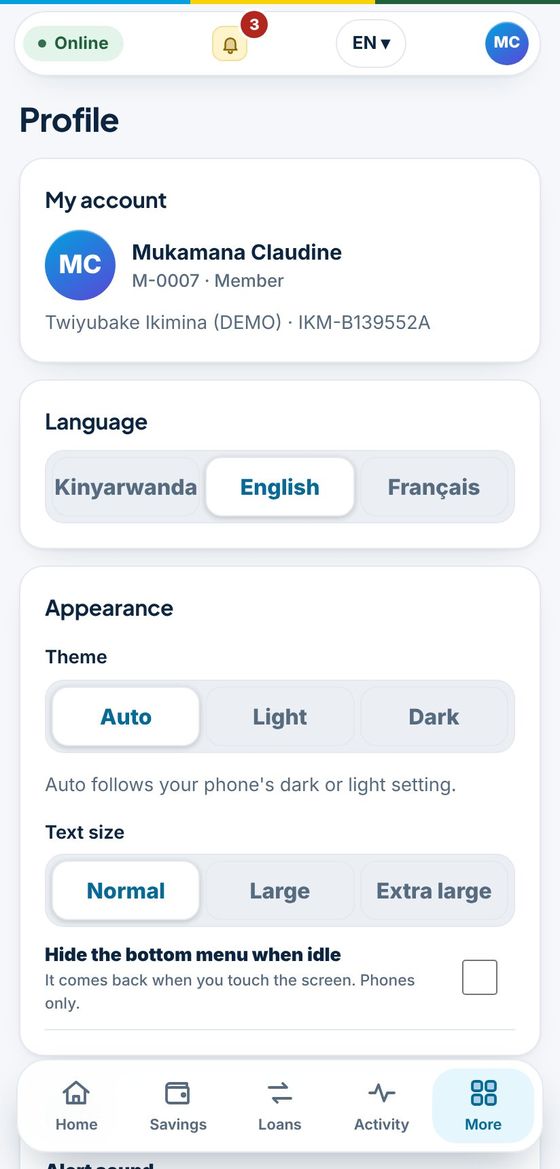
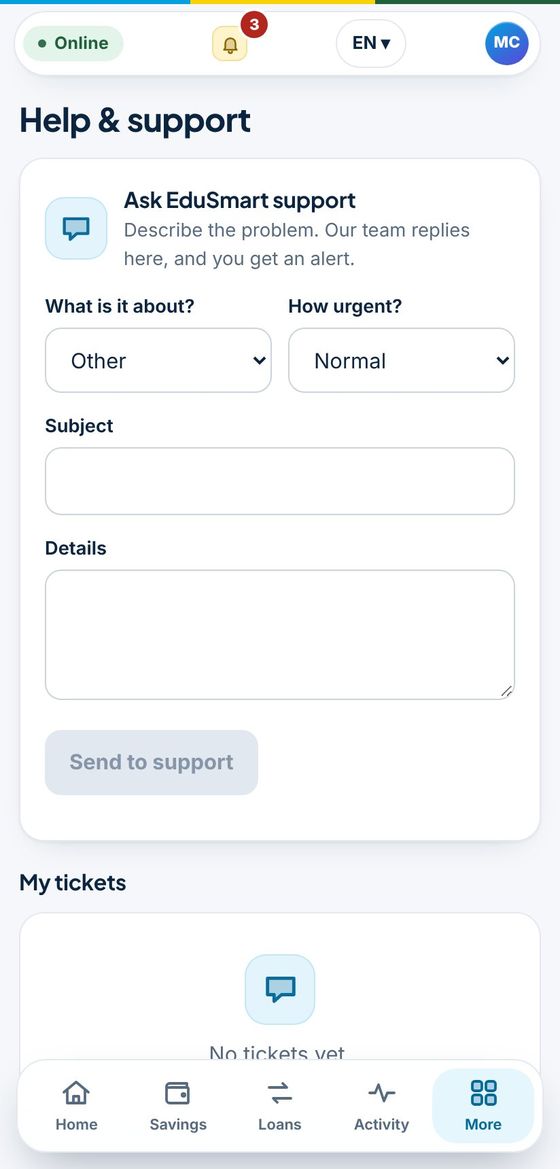
- Change your PIN in your profile. Choose one that is not obvious, and never share it.
- Settings let you choose the language, dark mode and whether the bottom menu hides itself.
- Sign out from the account menu at the top, especially on a shared phone.
Recording contributions
Recording savings is the Accountant's job alone. Pick the month and the date from a calendar so nothing is typed by hand.
 Ikimina
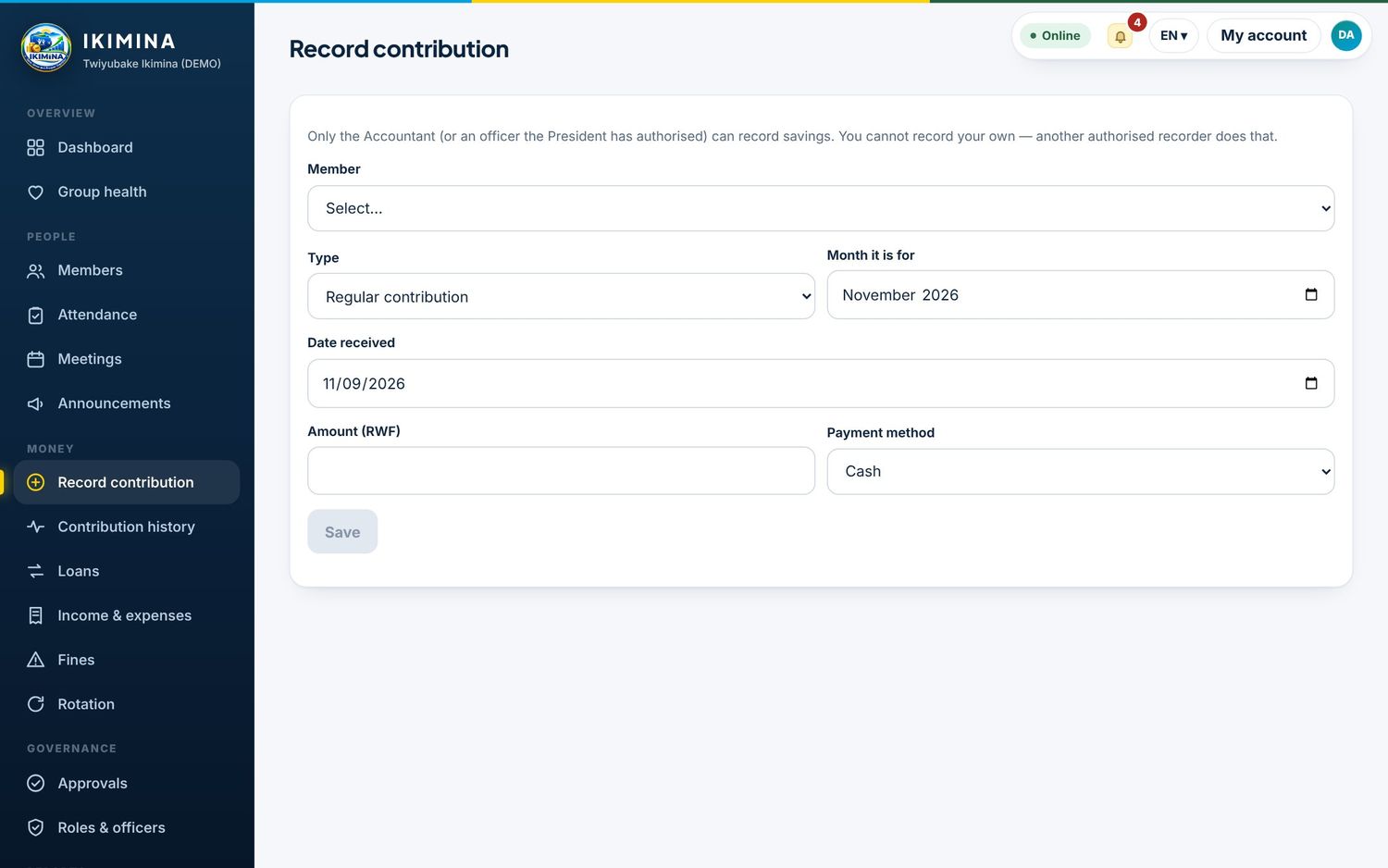
- Choose the member. Pick who paid. You cannot record your own payment: another authorised recorder does that.
- Month and date. Pick the month it is for and the date you received it. Future dates are blocked.
- Amount and method. Enter the amount and choose cash, mobile money or bank.
- Save and confirm. Check the summary, confirm, and the receipt is issued.
- For a rotation pot payment choose Rotation pot only and type the round, for example R3.
- Without internet the payment is kept on the phone and uploads by itself when the connection returns, without being counted twice.
- A mistake is corrected with a reversal that another officer approves. The original line stays visible.
Loans, income and expenses
Pay out approved loans, record repayments, and keep the cashbook equal to the cash.
Ikimina
 Ikimina
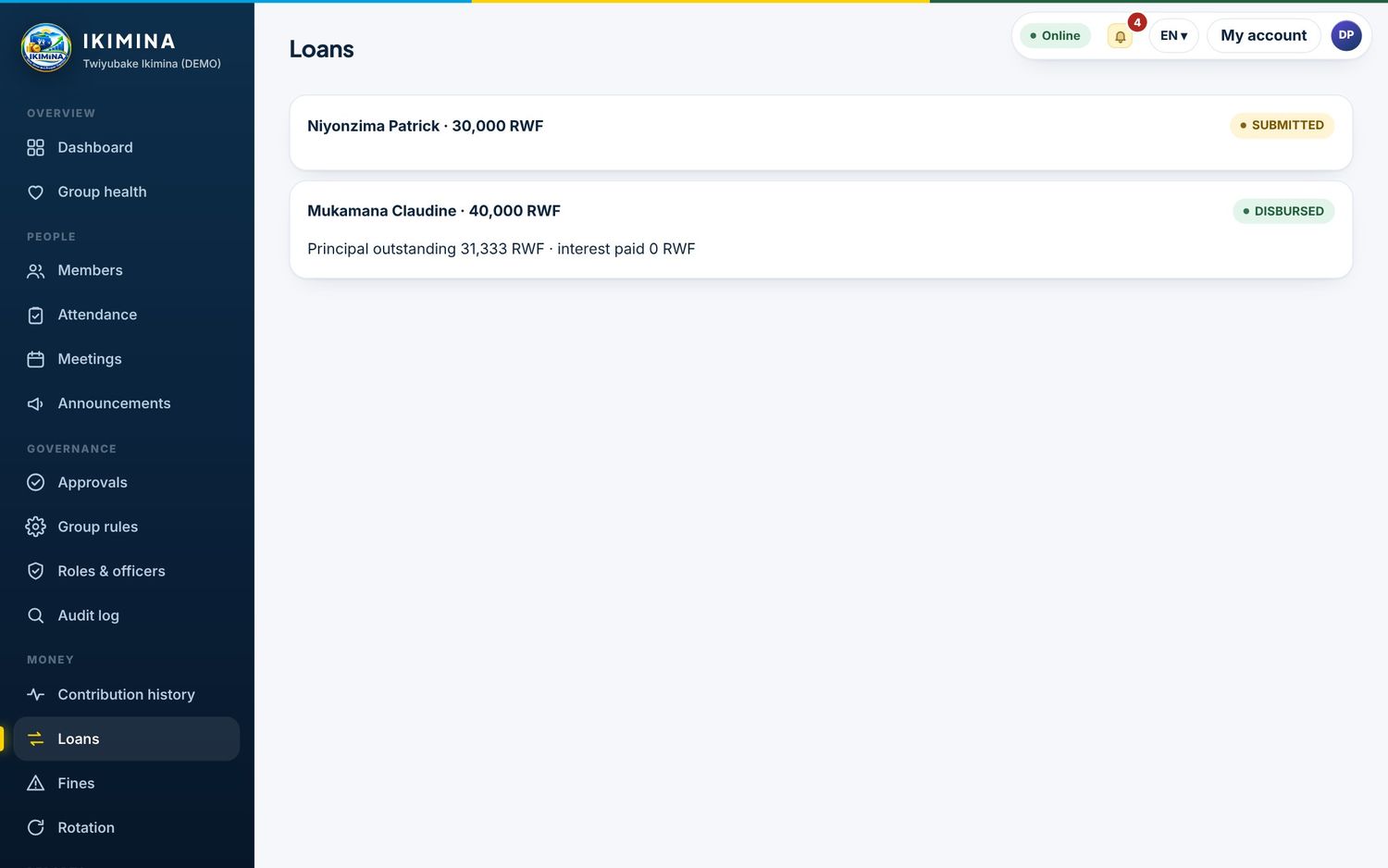
- A loan needs approval from the President and the Accountant before it is paid out. The borrower can never approve their own loan.
- Record each repayment with the date from the calendar. Principal and interest are split automatically.
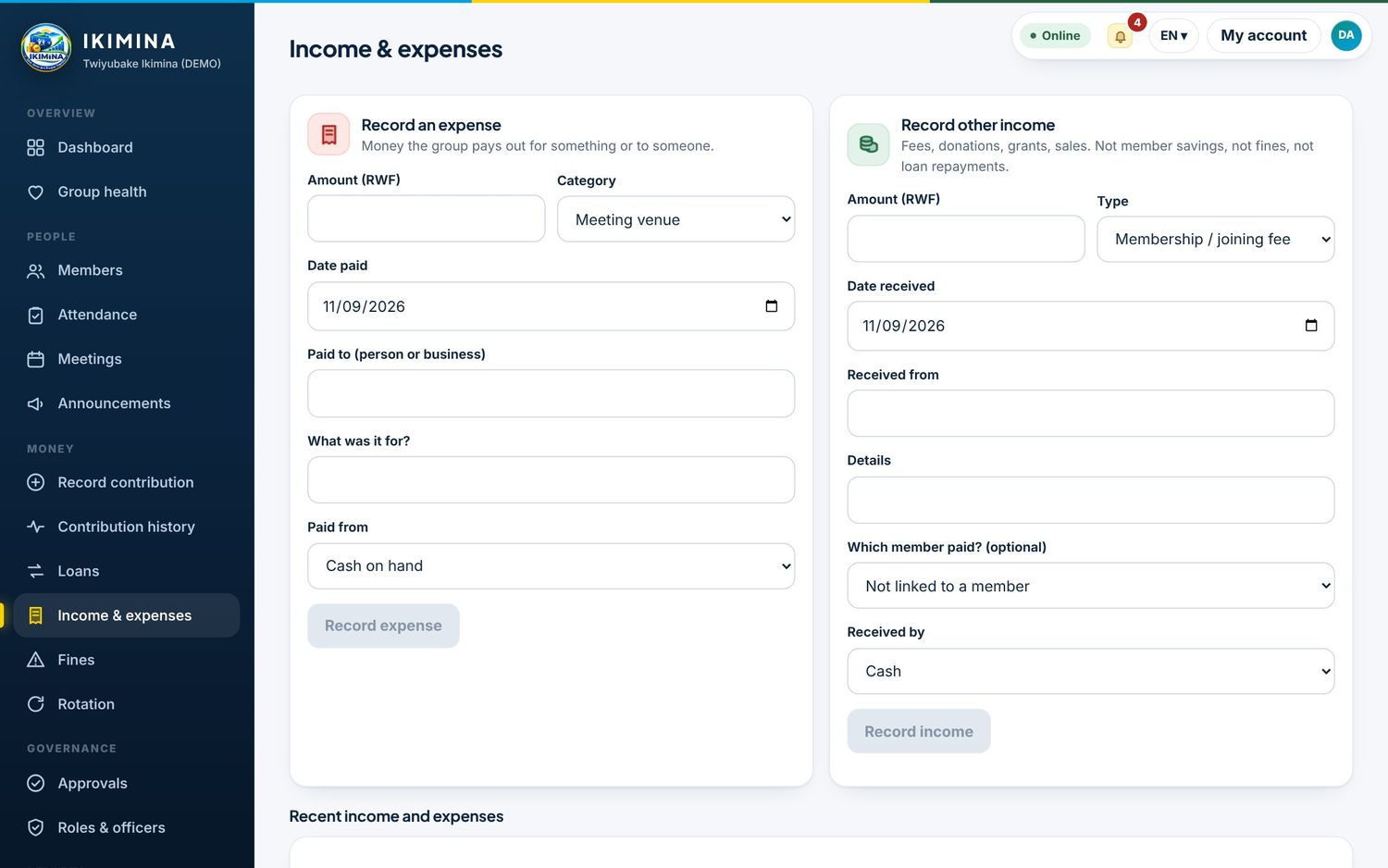
- An expense above the group's limit waits for the President or Vice President to approve before it is paid.
- Income that is not member savings (fees, donations, grants, sales) goes under Record other income.
Taking attendance
Record who came to each meeting. Members then see their own attendance in their account.
Ikimina
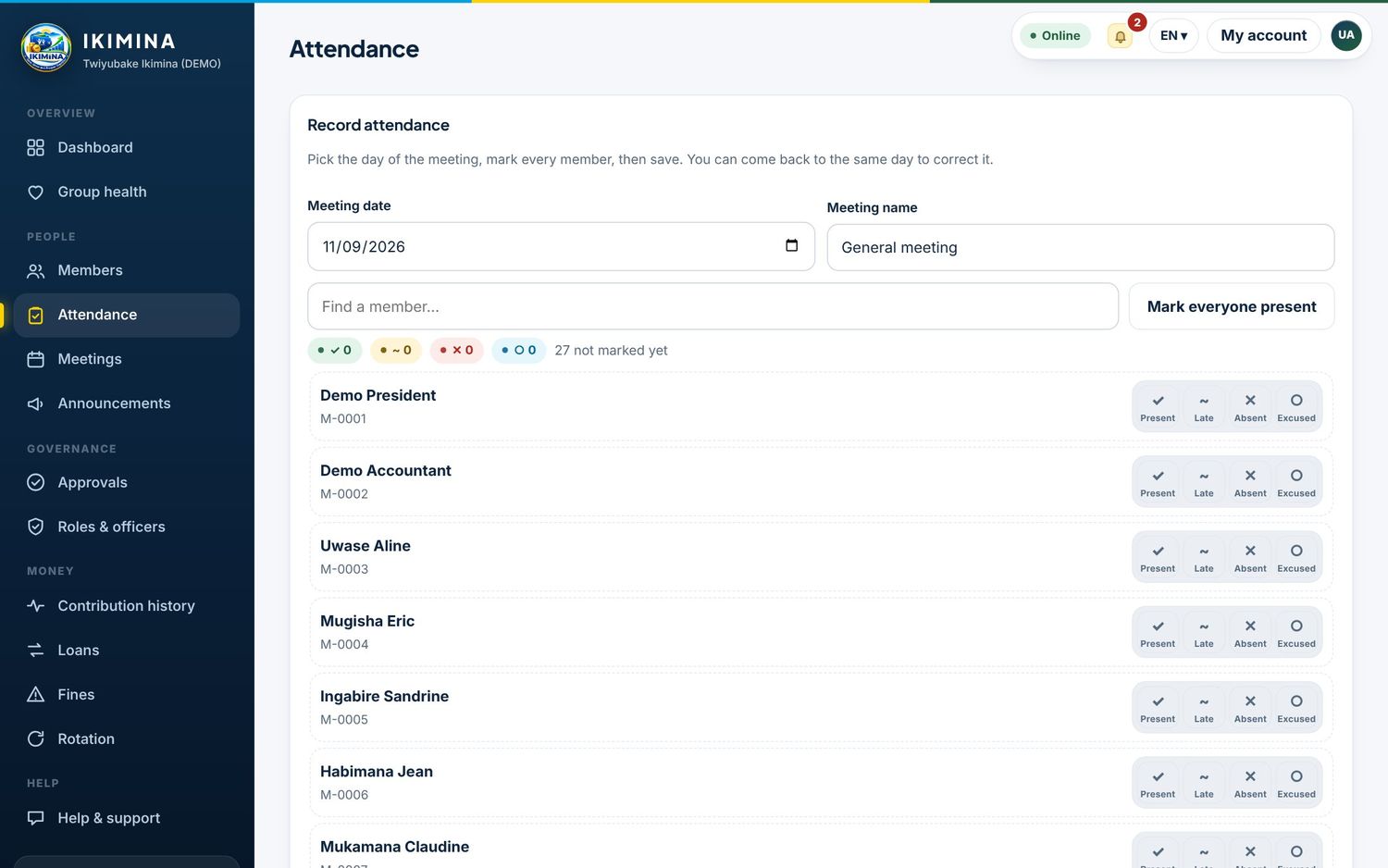
- Pick the meeting date. Choose the day from the calendar. If a meeting already exists that day, its attendance opens.
- Mark each member. Present, Late, Absent or Excused. Use Mark everyone present to start fast.
- Save. Save is available once everyone is marked.
- Fines (optional). Tick the box to apply the group's fines for late and absent members.
- Attendance can be recorded from the day of the meeting, not before.
- You can reopen the same day later and correct a mark.
- Excused members are not counted against the attendance rate.
Meetings and announcements
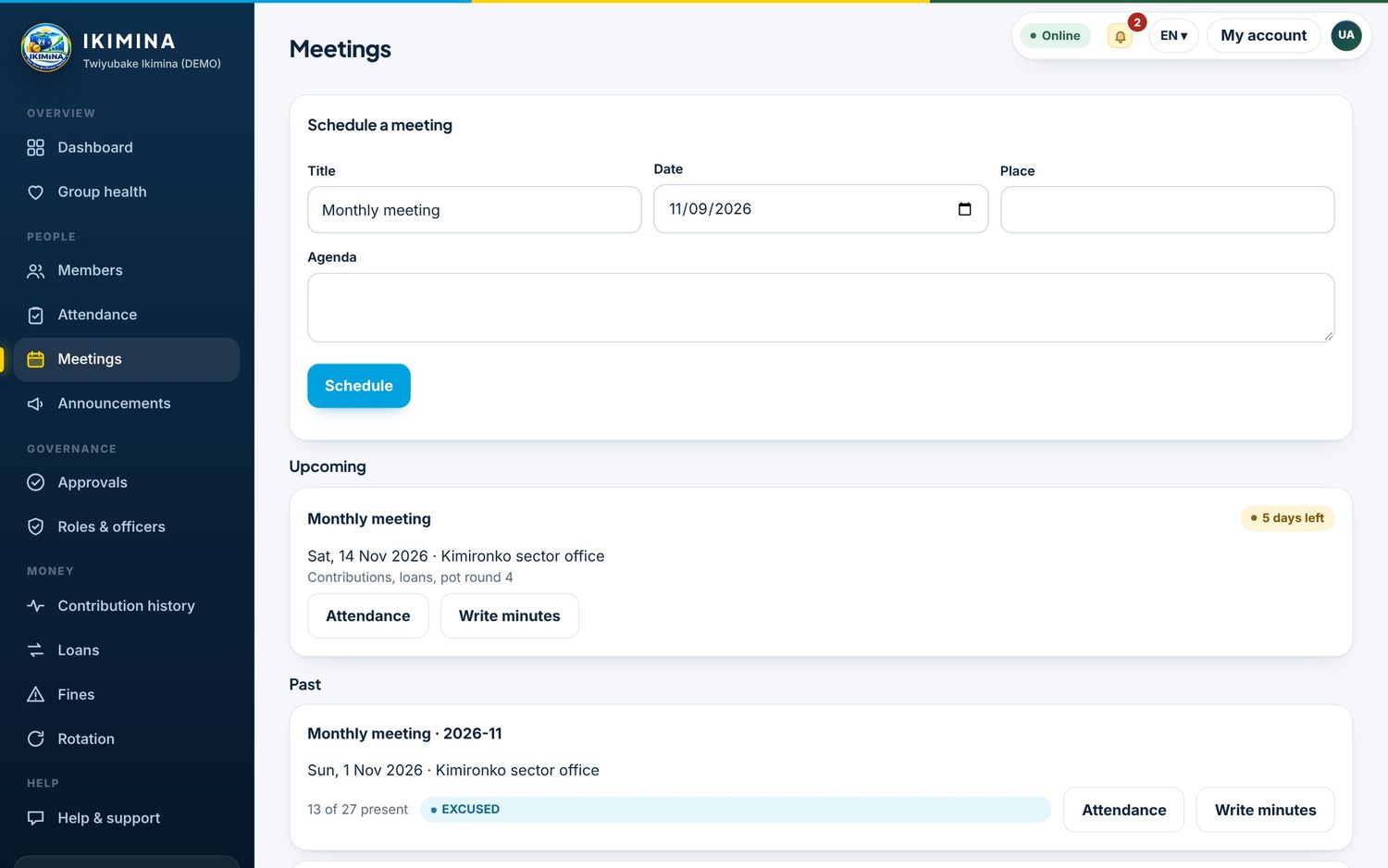
Plan meetings, keep the minutes and tell the group what is happening.
Ikimina
 Ikimina
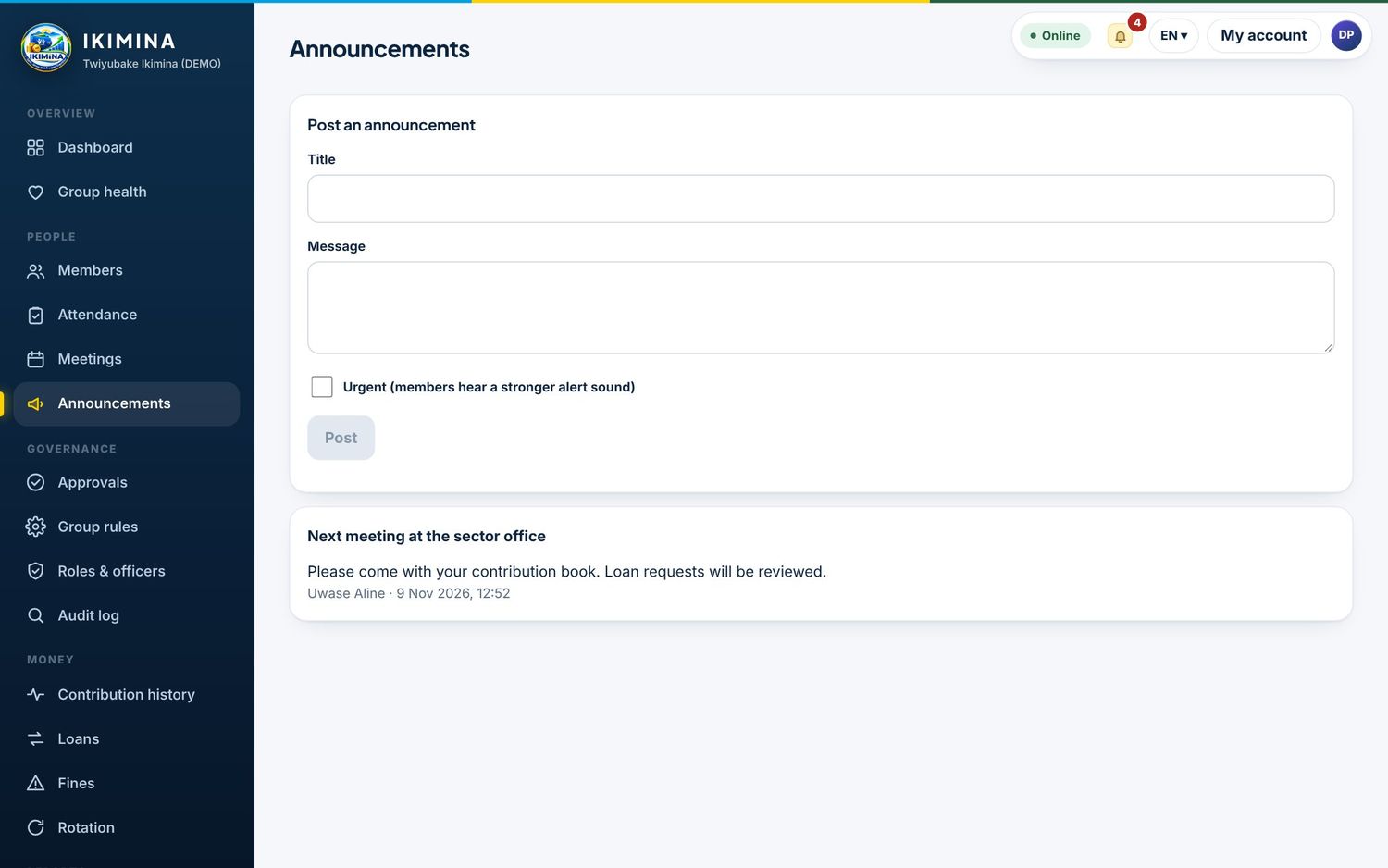
- Members are alerted two days before a meeting.
- Save the minutes after the meeting so absent members can read them.
- Mark an announcement as urgent when everyone must see it.
Dashboard and approvals
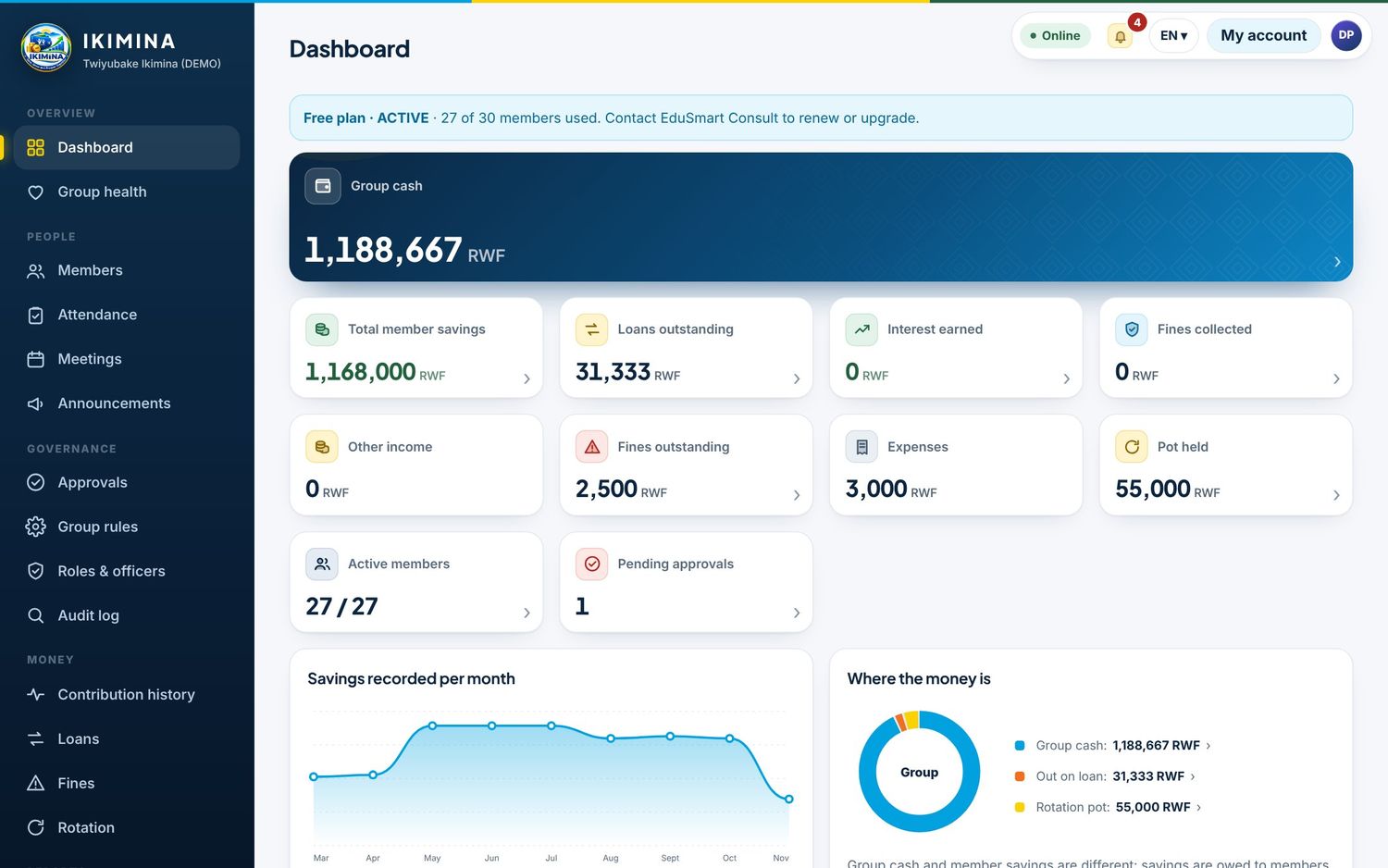
See the group's position at a glance and decide the requests waiting for you. Every figure on the dashboard opens its page.
Ikimina
 Ikimina
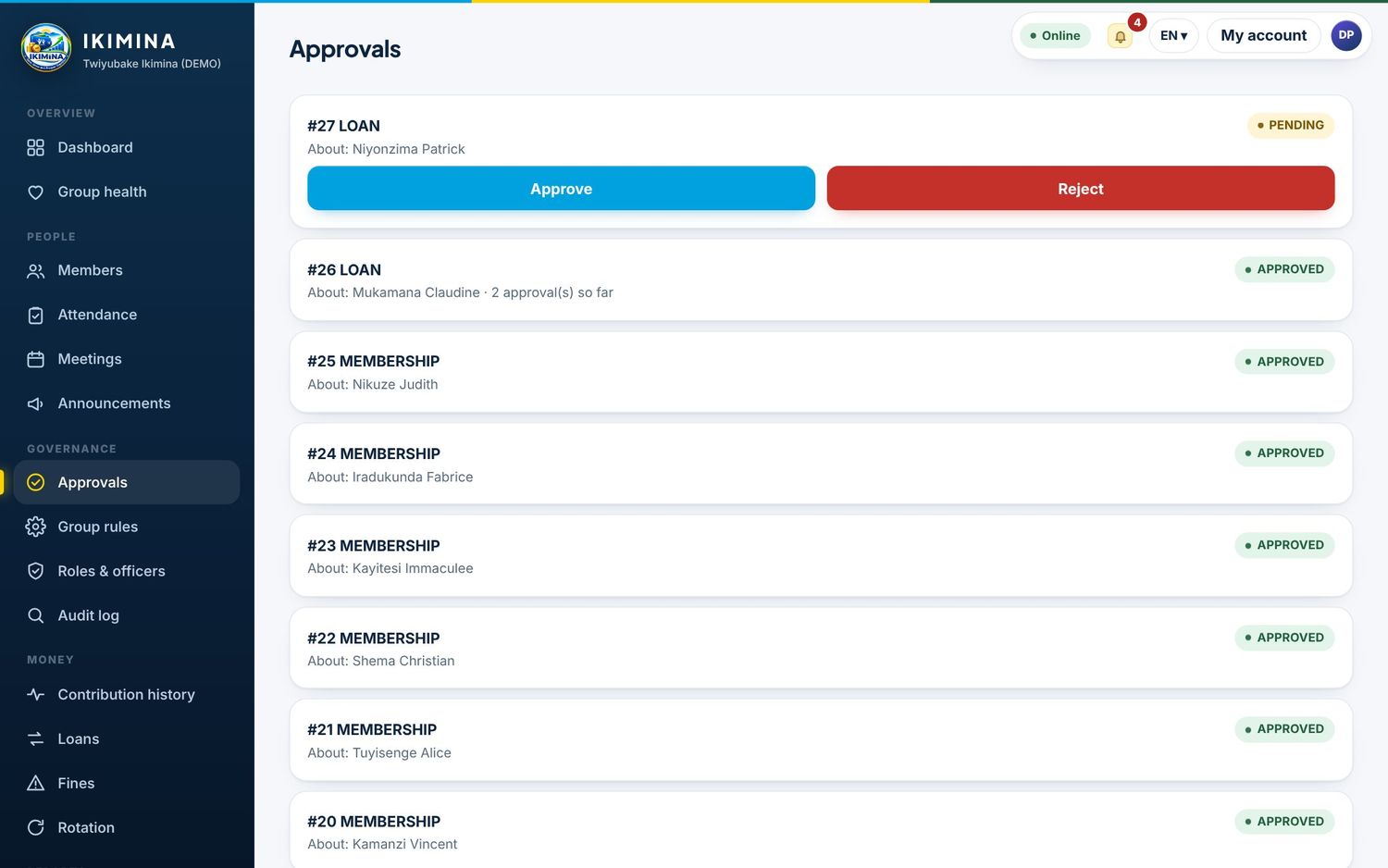
- Approvals cover new members, loans, large expenses, fine waivers, corrections, payouts, rule changes and role changes.
- You can never approve a request you made yourself, or one about you.
- Open Approvals regularly: a loan or member waits until the right officers decide.
Members
The register of everyone in the group, with savings, status and the actions officers need.
Ikimina
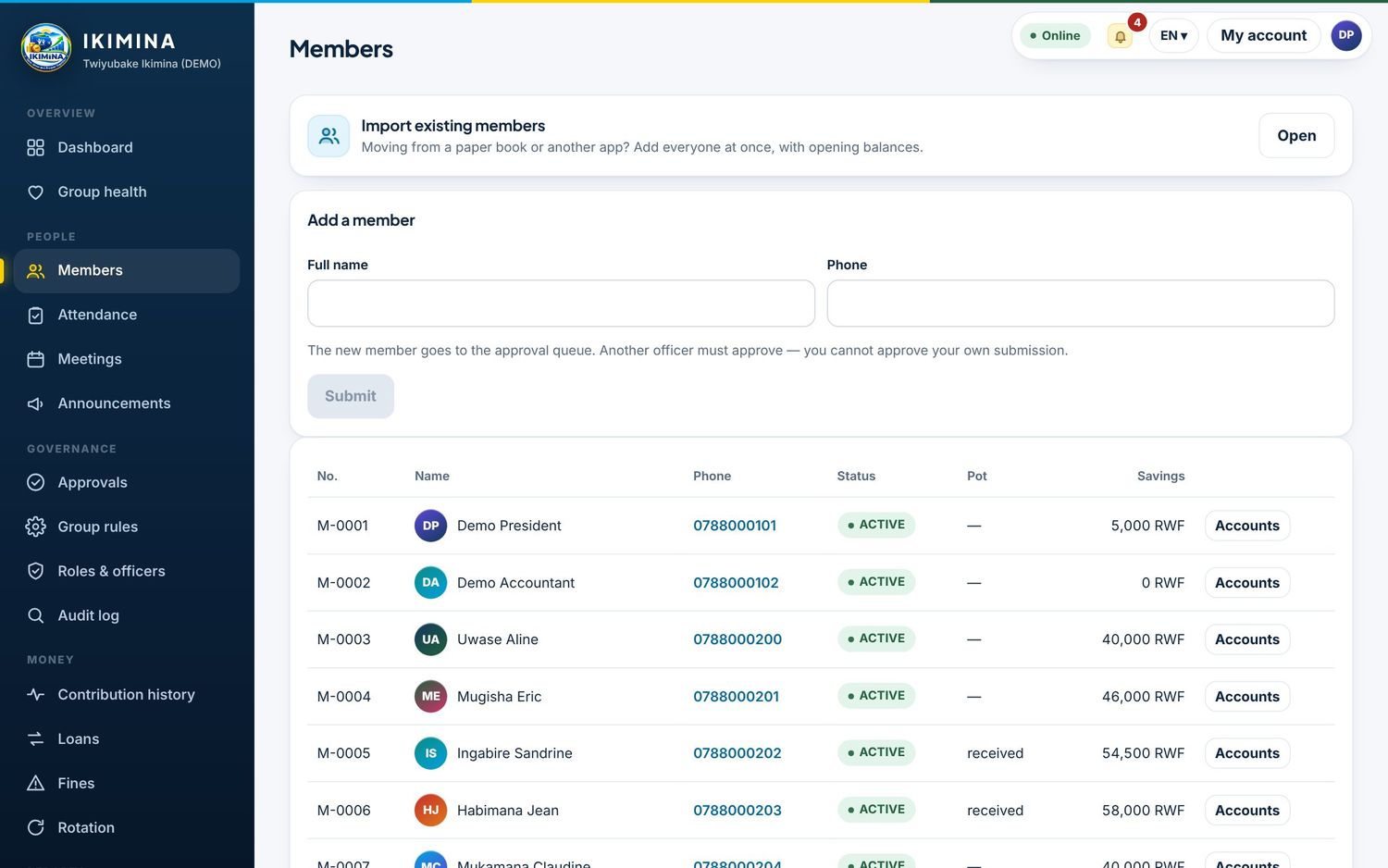
- Add. Enter the name and phone number and submit.
- Approve. Another officer approves. The member gets a temporary PIN, given in person.
- Accounts. A member can hold more than one savings account, each with its own number of shares.
- Reset a PIN. If a PIN is forgotten, reset it. The old PIN stops working and a new temporary one is shown once.
Contribution history, fines and rotation
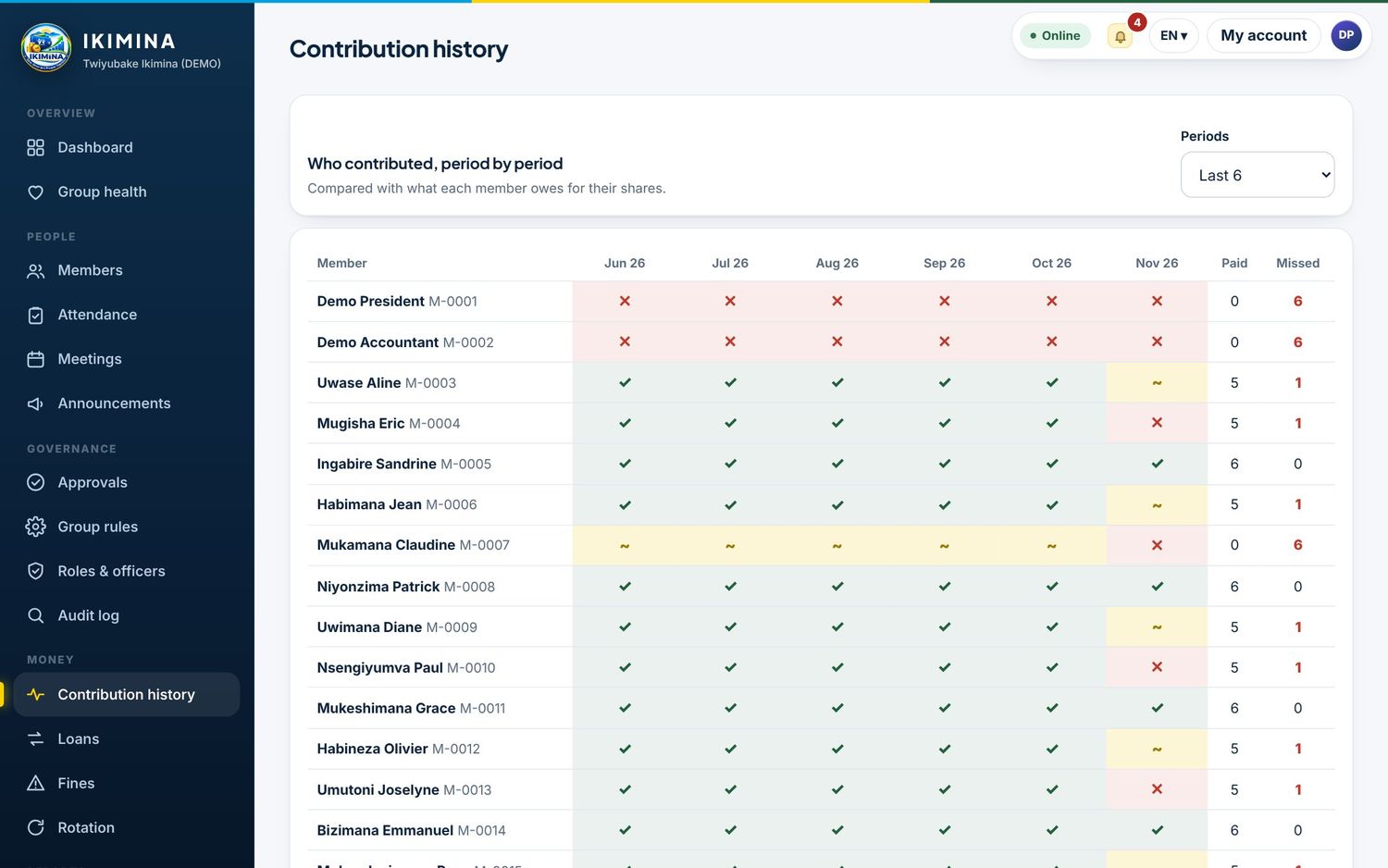
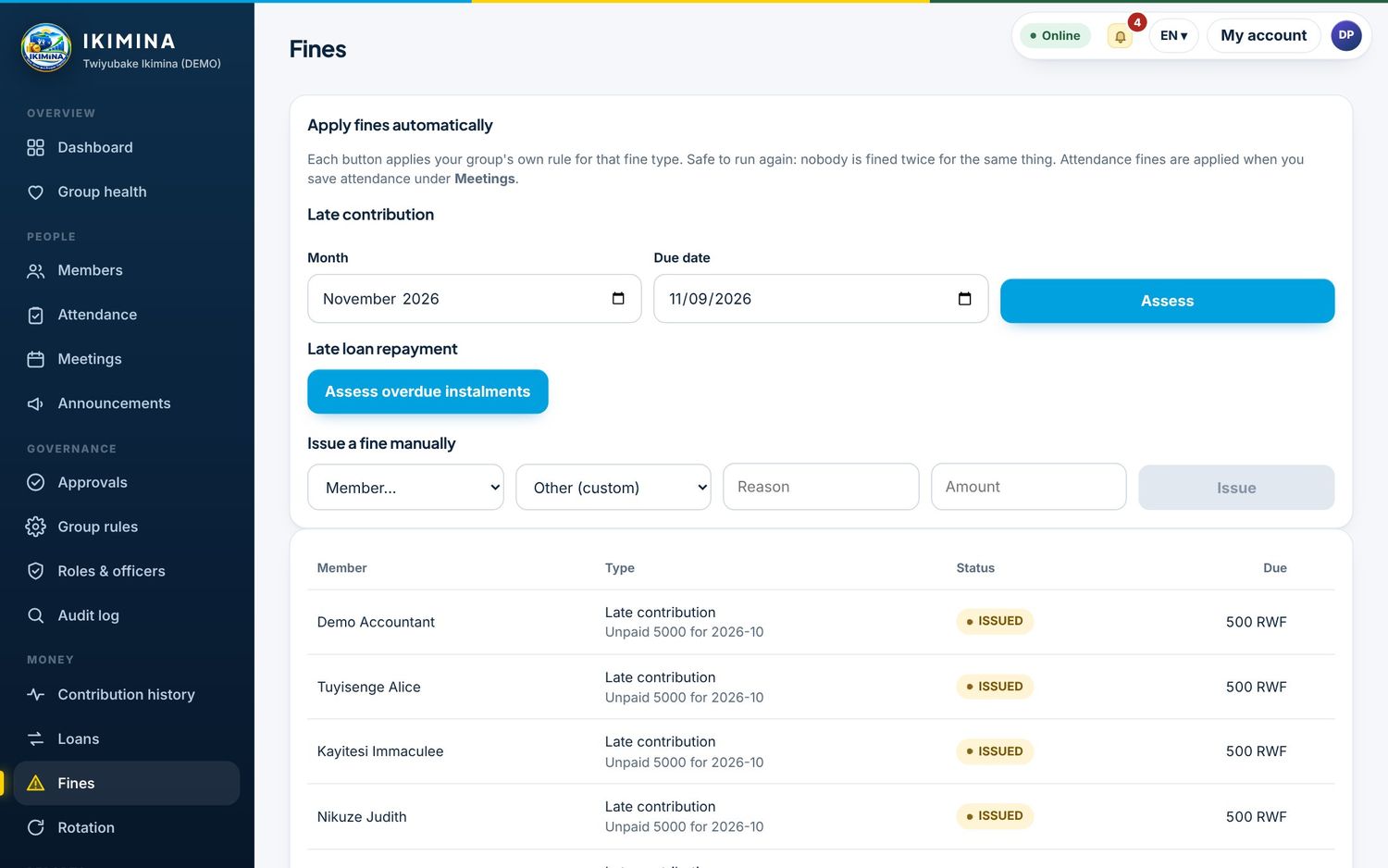
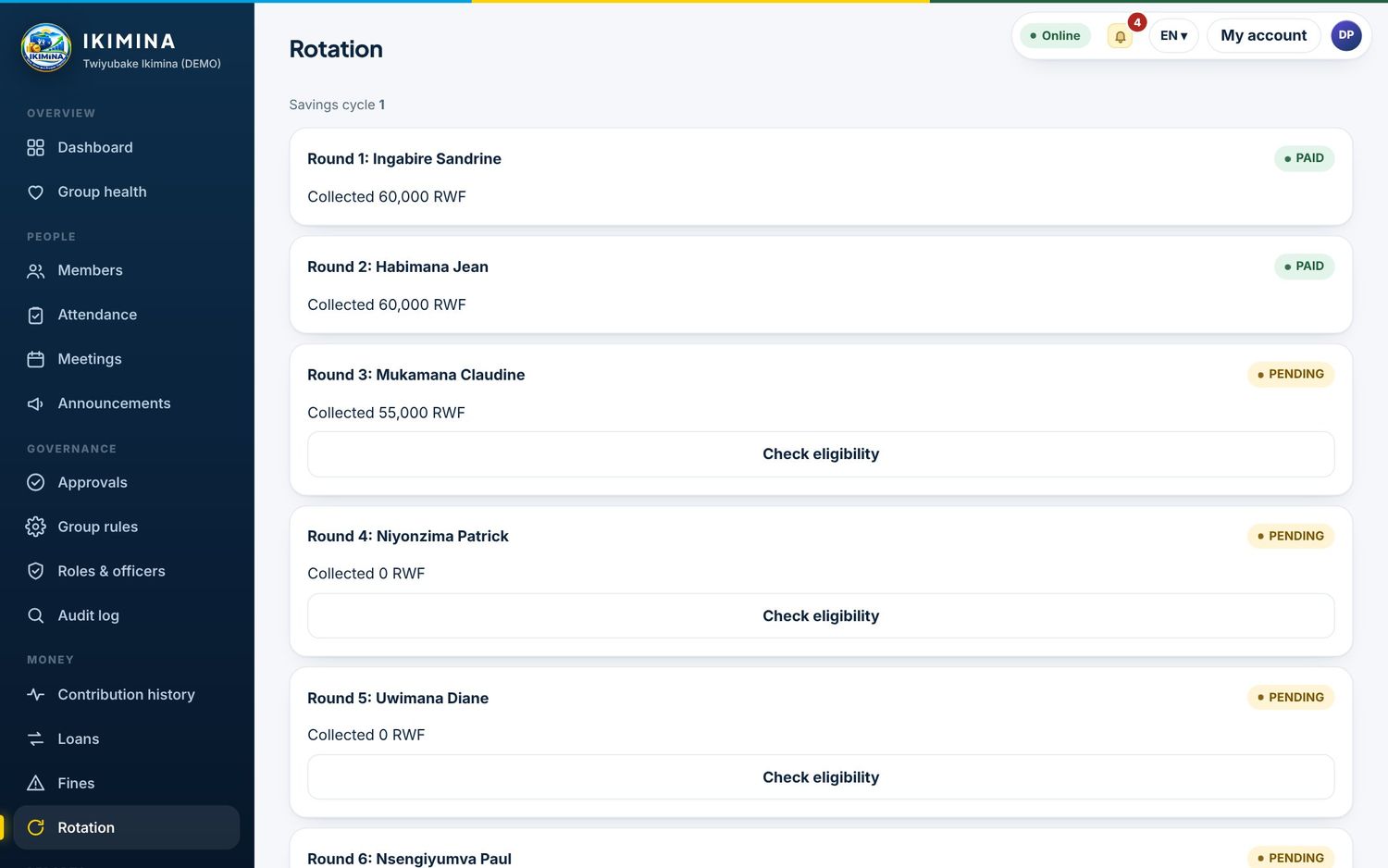
See who paid in which month, handle fines, and run the rotating pot.
Ikimina
 Ikimina
 Ikimina
- Contribution history compares what each member paid with what they owe for their shares, and totals each month.
- Fines follow the group's rules and are safe to run again: nobody is fined twice for the same thing.
- In a rotation the pot is paid out round by round, and every payout is approved before it is paid.
Group health and reports
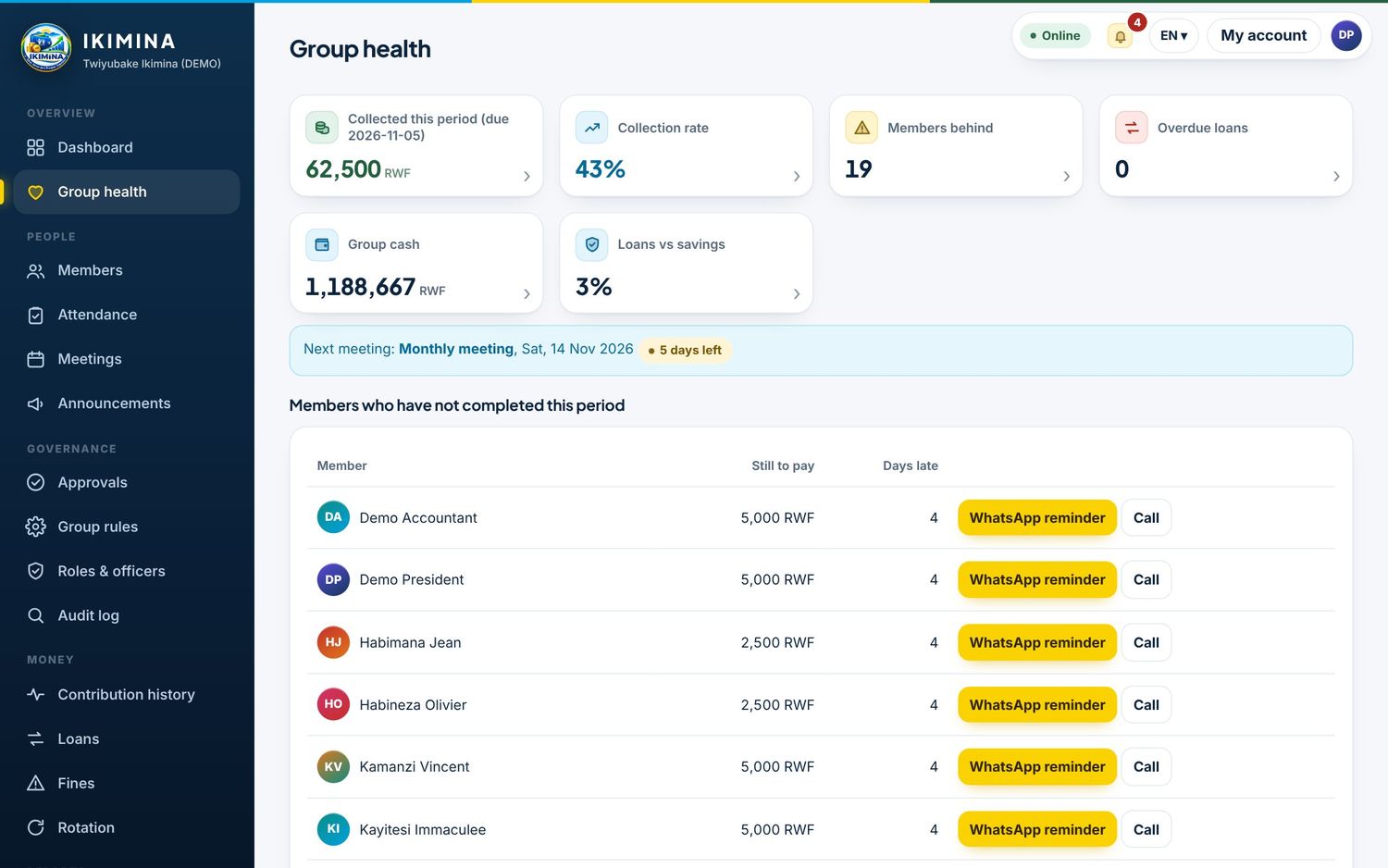
Know who is behind and keep proof of the group's money.
Ikimina
 Ikimina
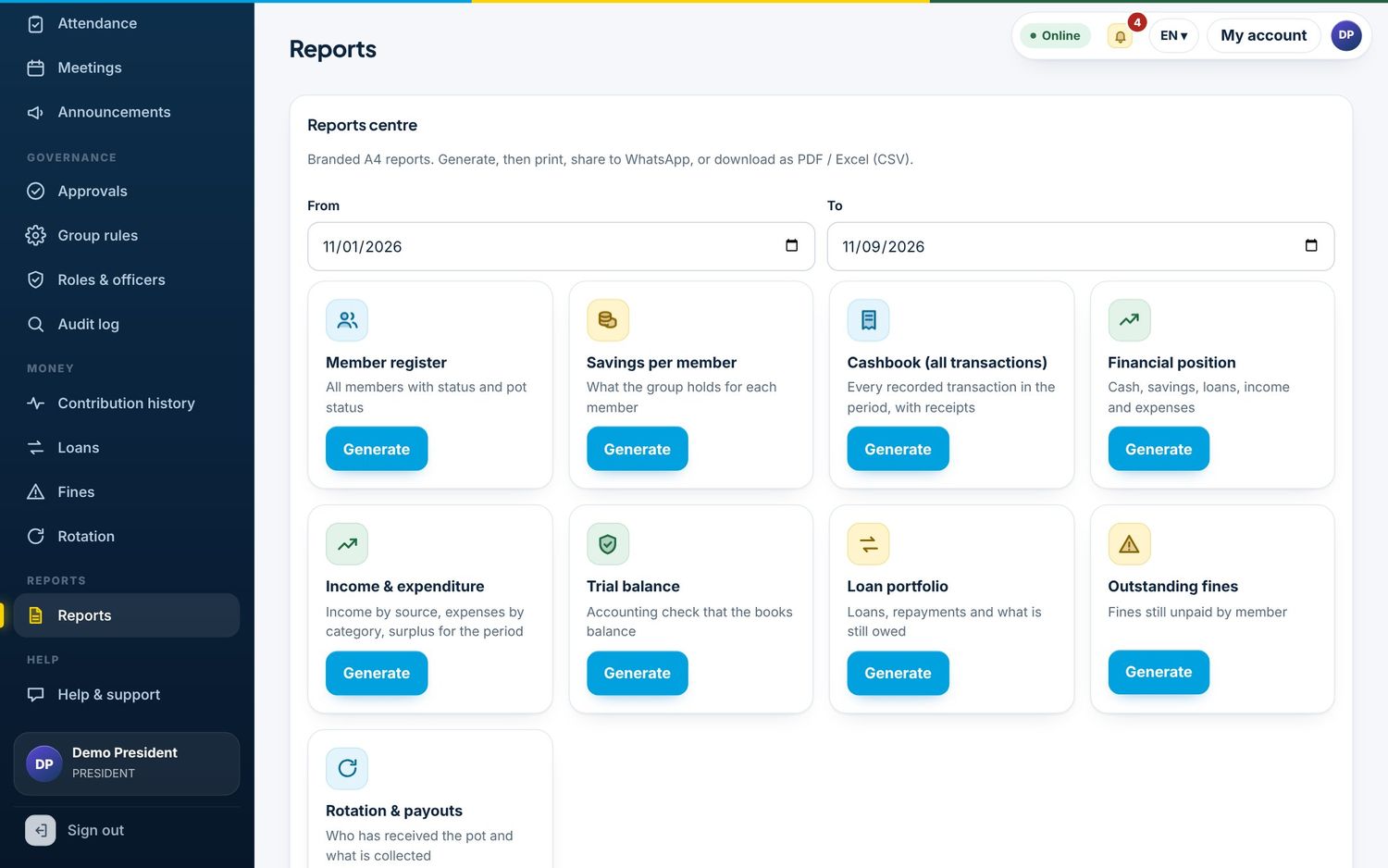
- Send a friendly WhatsApp reminder to a member who is behind with one tap.
- Group statements and member statements can be saved as PDF and shared.
- The year-end share-out preview shows what each member would receive. It is a preview, not a payment.
Group rules and roles
Each group decides its own rules and who holds each role. Changes are recorded and never rewrite the past.
Ikimina
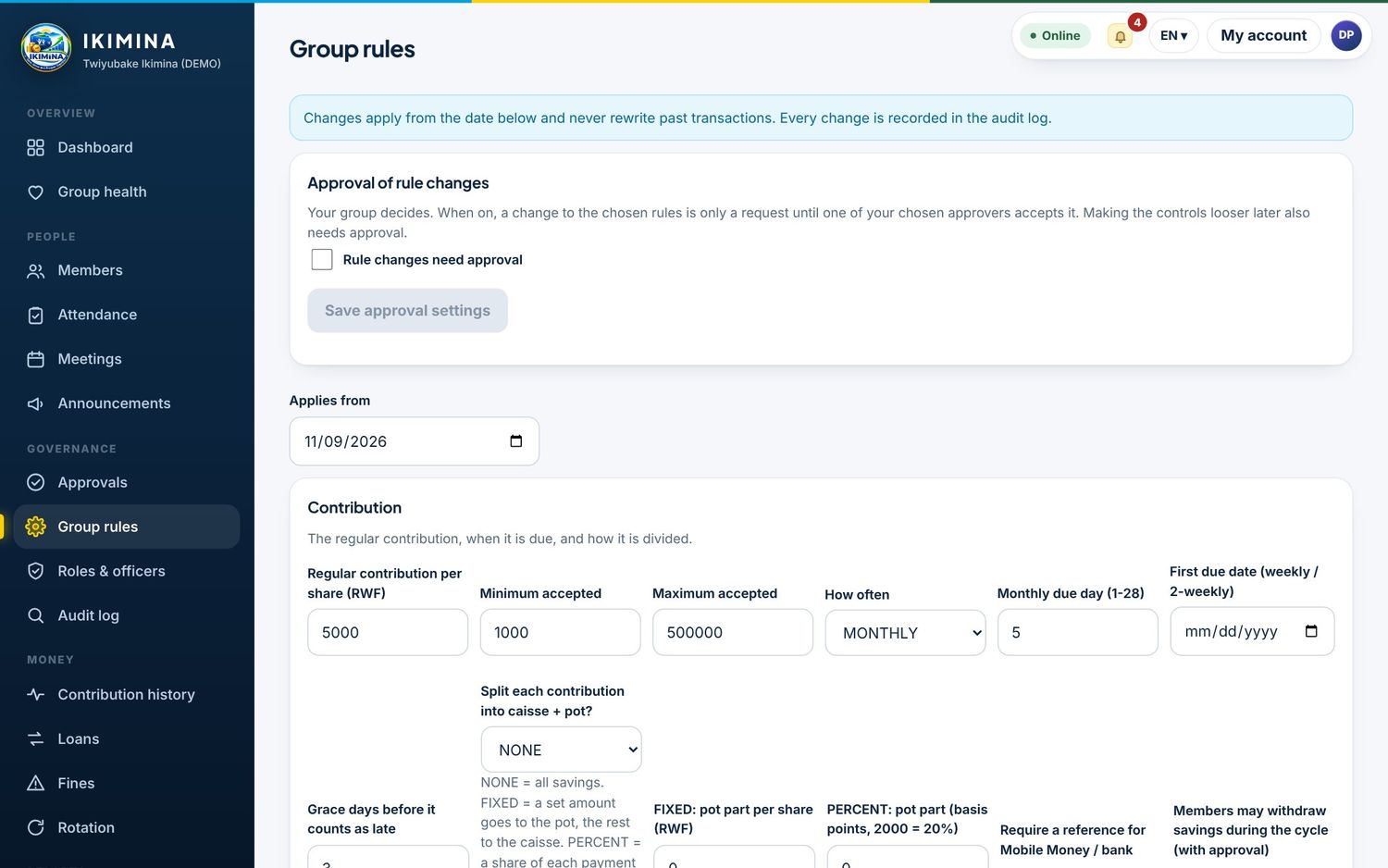 Ikimina
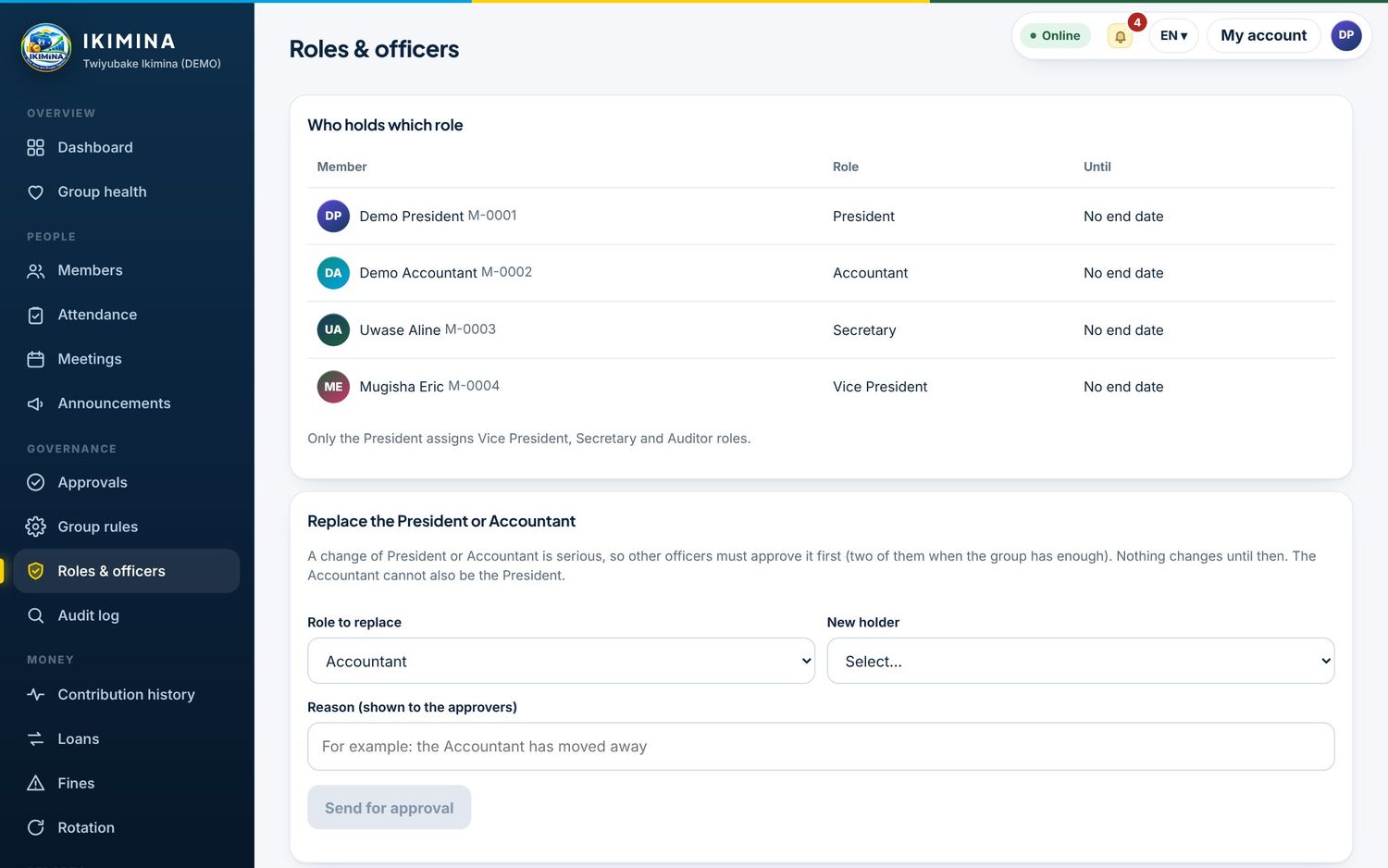
- Give a role. The President gives Vice President, Secretary or Auditor roles, or ends them.
- Temporary permission. Lend a member one extra job until a date you choose, for example recording savings while the Accountant is away.
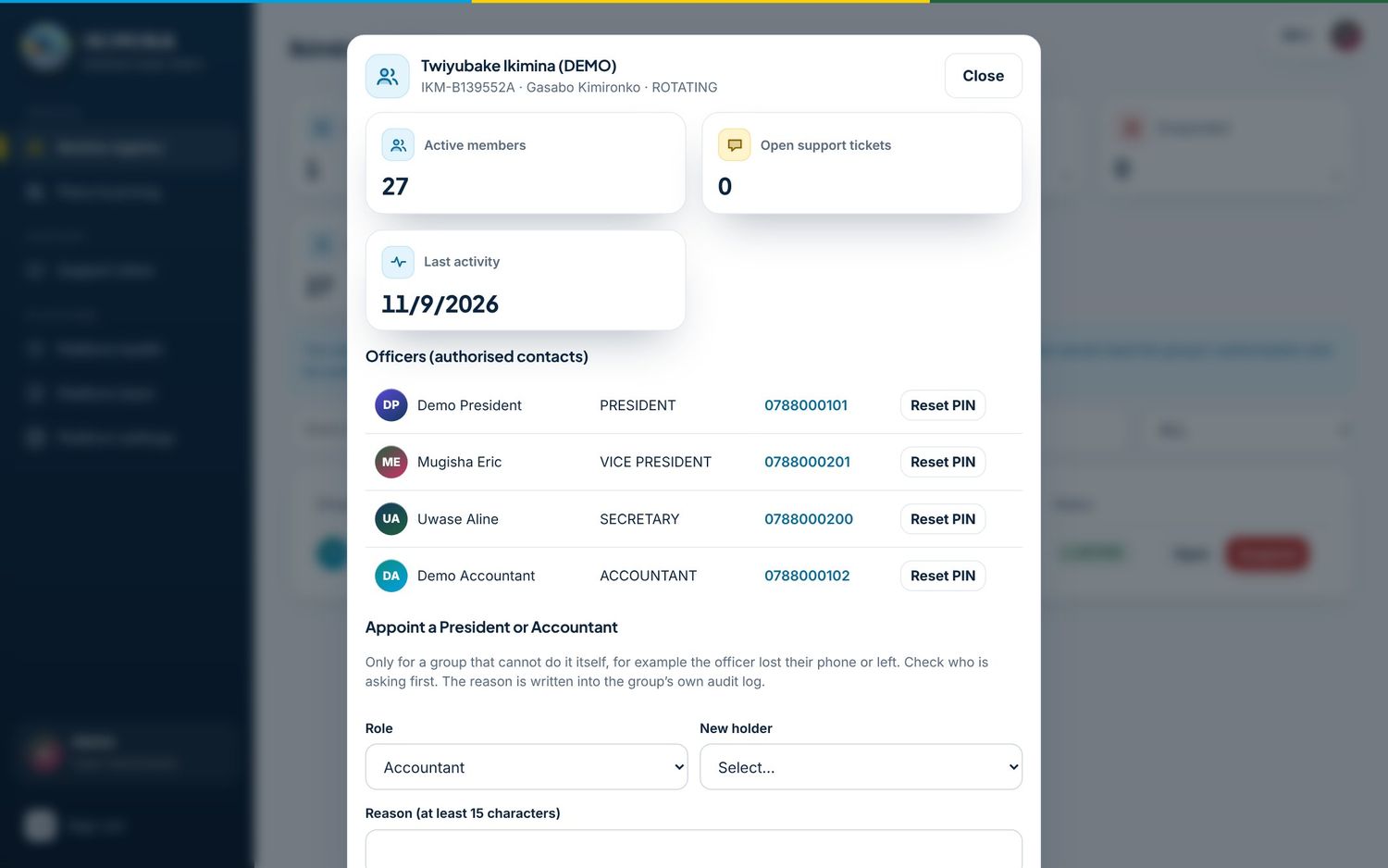
- Replace President or Accountant. The President or Vice President sends a request with a reason.
- Approval. Other officers approve (two when the group has enough). Only then does the change happen.
Audit log and security
Every sign in, payment, approval and change is recorded with who did it and when.
Ikimina
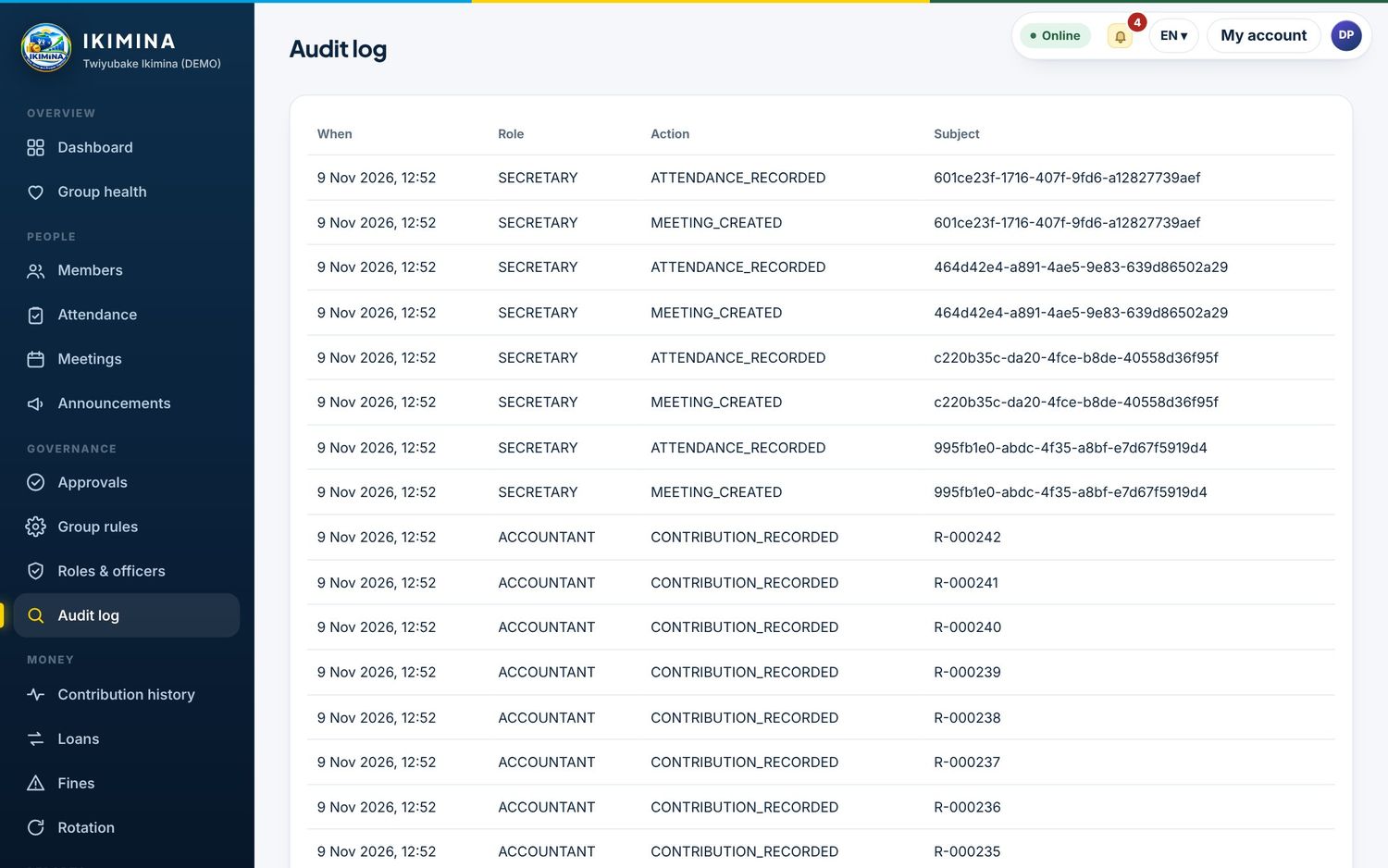
- Money records are append-only. Corrections are new entries that an officer approves.
- Each member sees only their own records. Officers see only what their role allows.
- PINs are stored in a protected form, accounts lock after repeated wrong tries, and you can sign out of other devices.
- Dates cannot be in the future, and months and dates come from calendars to avoid typing errors.
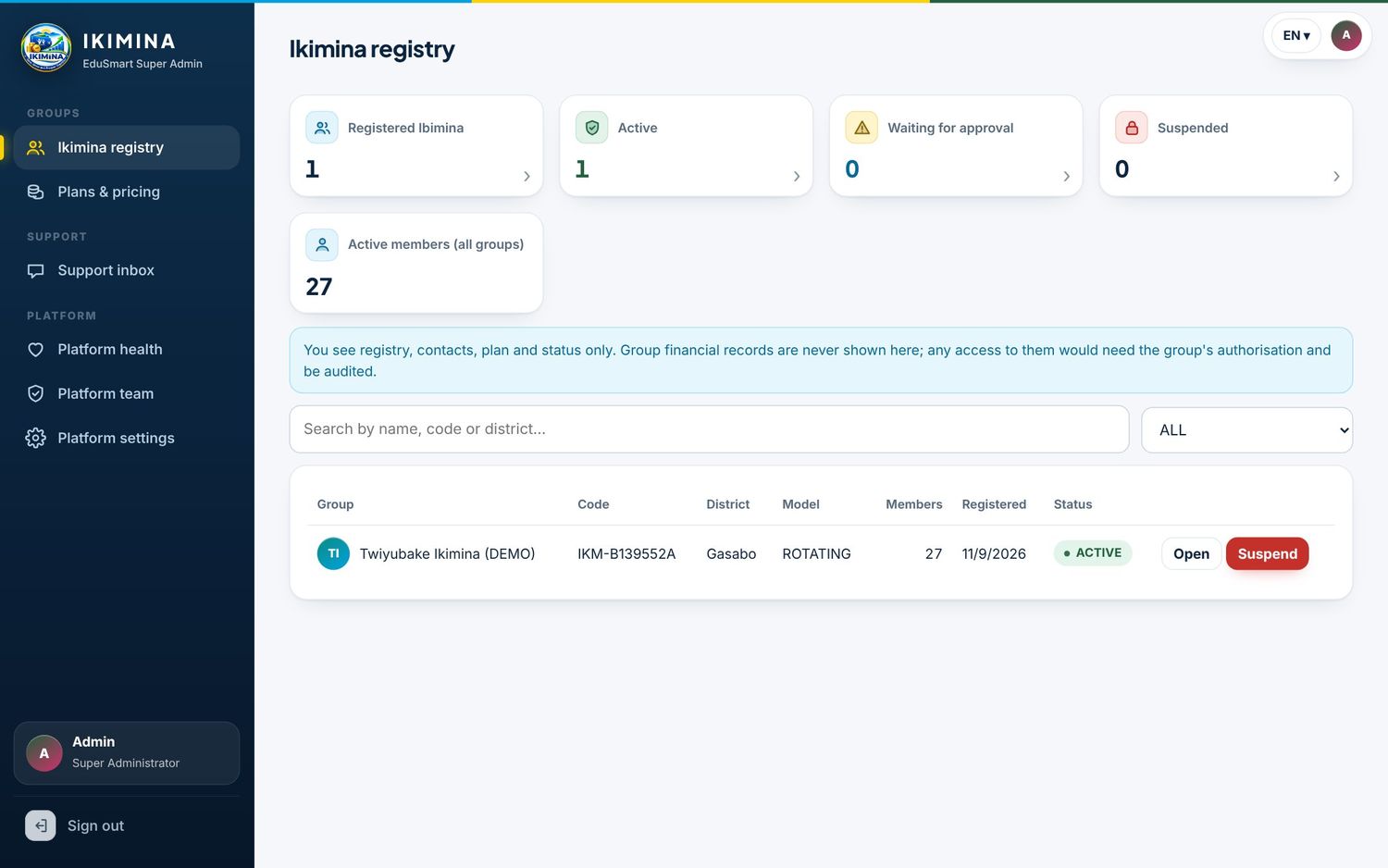
- EduSmart support sees the group's name, contacts, plan and status. It does not see the group's money records.
The platform team
EduSmart Consult staff look after all the groups. Each person has a role that limits what they can do.
Ikimina
 Ikimina
 Ikimina
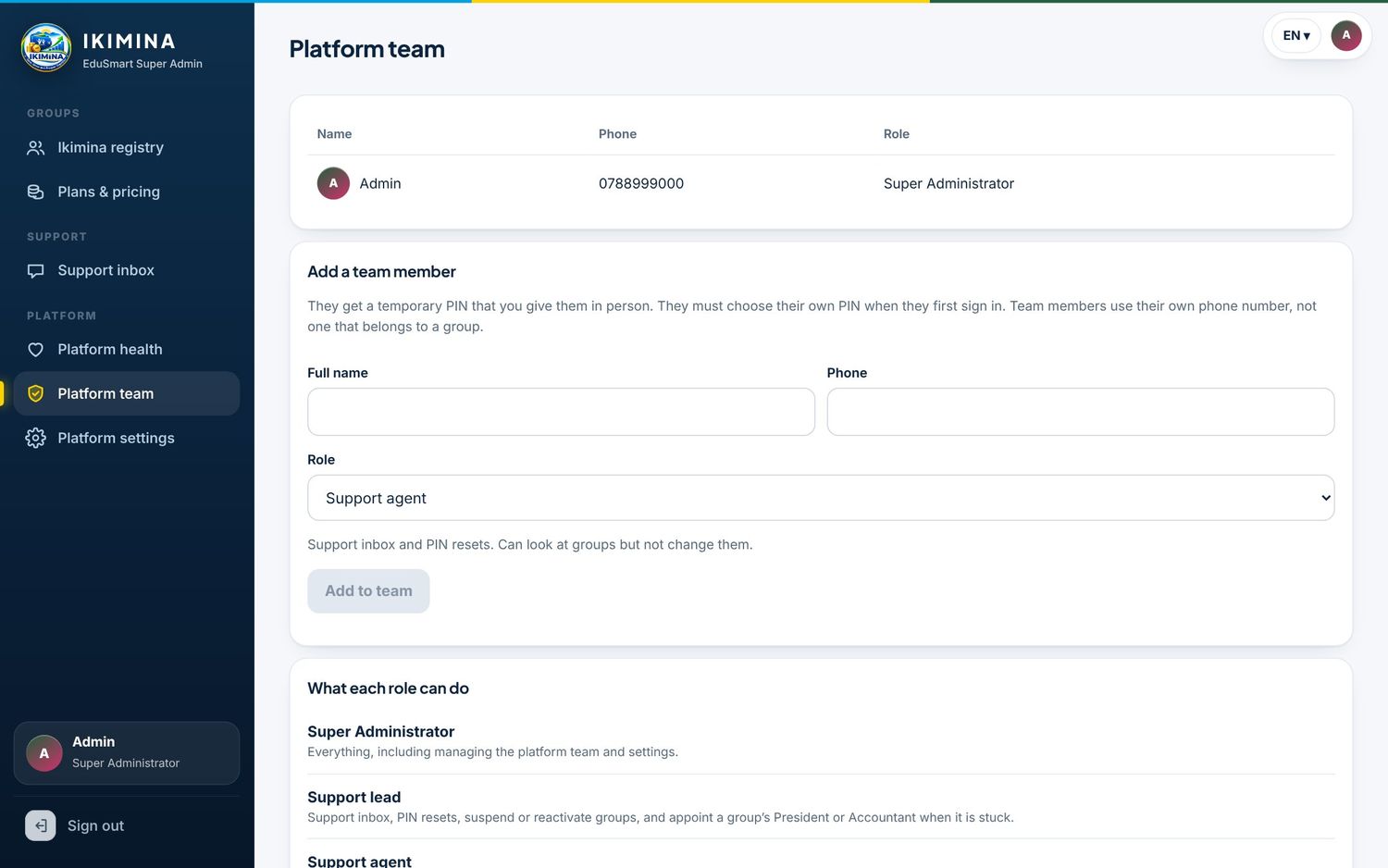
| Role | Can do |
|---|---|
| Super Administrator | Everything, including the team and settings. |
| Support lead | Support inbox, PIN resets, suspend or reactivate groups, appoint a group's President or Accountant. |
| Support agent | Support inbox and PIN resets. Looks at groups without changing them. |
| Billing manager | Plans, prices and subscriptions. |
| Analyst | Read-only view of groups and platform health. |
Good to know and troubleshooting
Short answers to the questions groups ask most.
| Question | Answer |
|---|---|
| I forgot my PIN. | Ask an officer to reset it. You will receive a temporary PIN and choose a new one at once. |
| My account is locked. | Too many wrong PINs lock the account for a while. Wait, or ask an officer to reset your PIN. |
| My payment is missing. | Ask the Accountant. If it was recorded offline it appears once their phone is online. |
| The Accountant recorded a wrong amount. | Ask for a correction. The Accountant requests a reversal and another officer approves it. |
| Someone lost their phone. | Reset their PIN. If it is the President or Accountant, replace the role (see Group rules and roles). |
| The app is slow to open. | On the demo, the first open can take a minute. A group on a paid plan does not wait. |
| Can I use it without internet? | The Accountant can keep recording and the records upload later. Other pages need a connection. |
Set up your group with EduSmart Consult
We create the group, train your officers and support you.